At a Glance
- Every Monday at 7 AM local time, each sales rep gets one collections email covering every open invoice on their accounts
- Invoices are grouped by how late they are, oldest first, and include ones that aren't due yet
- Each invoice has one-tap Text, Email, and View buttons with the pay link already written in
- No login for the rep or the buyer. Accounts with no rep go to your AR contact, so nothing slips
- Turn it on, preview any rep's email, and send yourself a test from Settings › Sales Reps
What Is the Weekly Sales Rep Collections Email?
The weekly sales rep collections email is part of ShelfCollect. Every Monday morning, each of your sales reps gets one email listing every open invoice for the dispensary accounts assigned to them. It's their collections list for the week, and it's built so they can act on it from their phone in the parking lot.
Your reps own the relationships. The buyer answers their texts. This email puts the money owed in front of the person the buyer actually listens to, with the pay link ready to send.
What Each Rep Receives
The email opens with four numbers: total owed, the amount 31+ days late, the number of invoices, and the number of accounts. Below that, invoices are grouped by age (91+ days late, 61–90, 31–60, 1–30, then current and not yet due), oldest first. Every row shows the account, invoice number, amount, and how late it is or when it's due.
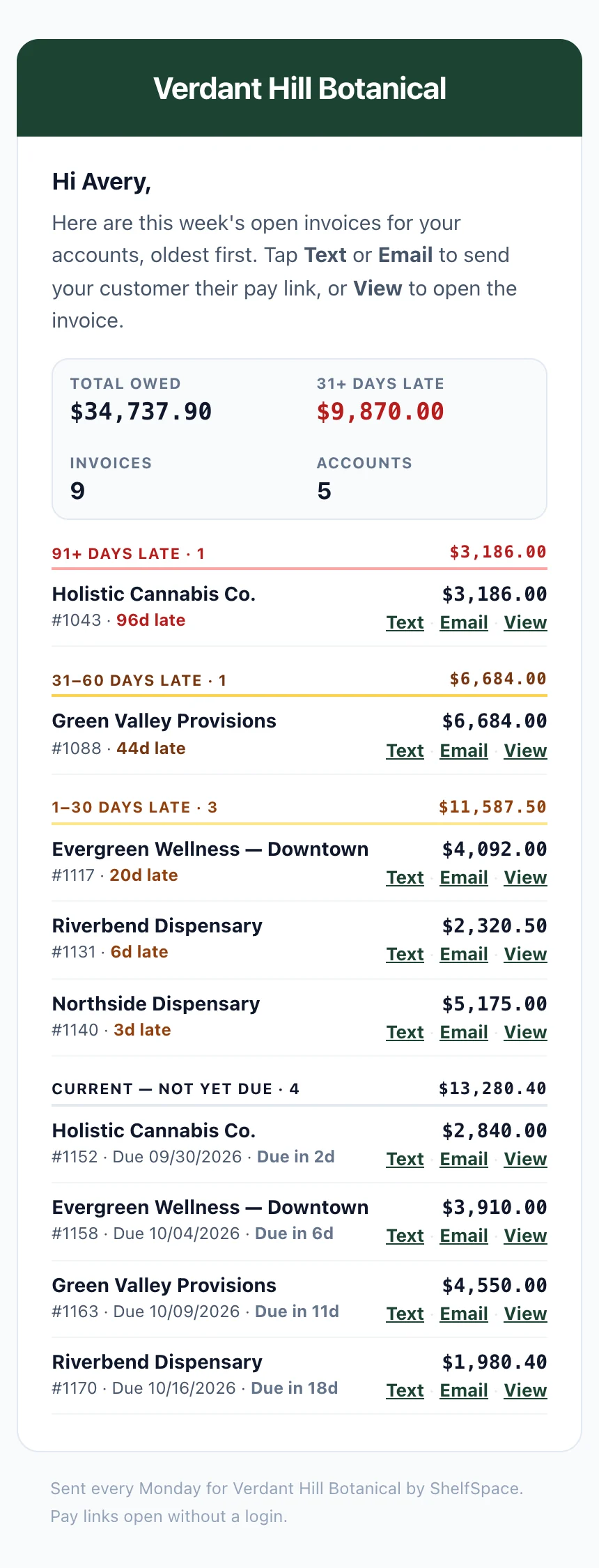
A rep's Monday email on a phone. Sample accounts and amounts.
Text, Email, View: How Reps Collect in One Tap
- Text opens the Messages app on the rep's phone with a one-line note already written: the invoice number and the pay link. The link shows up in the text as a preview card with your business name, the amount, and the invoice number. The rep picks the buyer from their own contacts and hits send. The text comes from the rep, not from ShelfSpace.
- Email opens a pre-written email already addressed to that account's billing contacts, with the same links inside.
- View opens the invoice so the rep can check it before reaching out. A rep looking at an invoice never counts as the buyer viewing it.
The buyer taps the pay link and lands on a one-screen pay page. No account, no login. See ShelfCollect for what the buyer sees.
Who Gets Which Accounts
Each rep's email covers the accounts assigned to them in Sales Rep Assignments. You can assign accounts one at a time, in bulk, or by importing a spreadsheet.
Set Up the Weekly Collections Email
- Open Settings › Sales Reps in the vendor portal and add your reps with their email addresses.
- Assign each dispensary account to a rep in Account Assignments.
- In the Weekly collections digest card, turn it on. Choose whether unassigned accounts go to your AR contact.
- Use Preview as to see exactly what any rep will get, or Send me a test to get a copy in your own inbox.
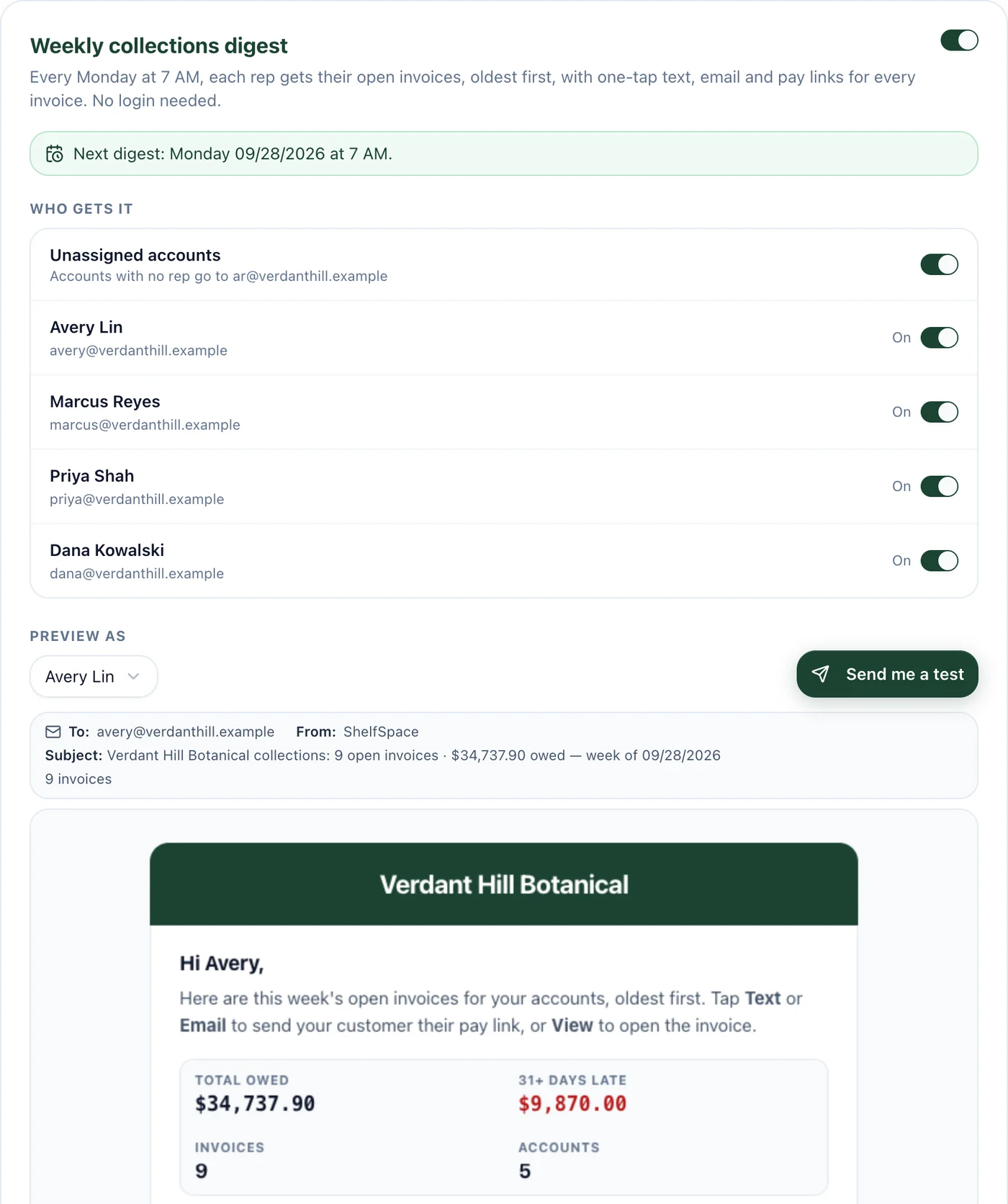
Settings › Sales Reps › Weekly collections digest.
From the same card you can switch off the email for an individual rep, or turn a rep back on after they unsubscribed. The email carries your logo and colors, and replies go to your AR inbox.
Why It Speeds Up Collections
Most late invoices aren't disputes. They slipped. A text from the rep the buyer already knows, with a link that takes a minute to pay, clears them faster than another notice from accounting. Reps also see the not-yet-due invoices, so they can mention next week's bill on this week's visit. Read the full story in our post on the weekly rep collections email, or see how it fits into cannabis accounts receivable.