
If you sell to a dispensary running on ShelfSpace, you can connect your QuickBooks Online to your ShelfSpace vendor portal and have every weekly settlement land in your books on its own — Invoice, Payment, deposit routing, and the settlement PDF attached. No more re-keying line items off a check stub. No more wondering whether last week's payout got booked to the right customer.
This guide walks through the whole setup, with screenshots from the actual portal. If you are mid-setup and stuck, jump to Troubleshooting at the bottom.
Connect QuickBooks
Open Settings → QuickBooks Online and click Connect to QuickBooks. Authorize ShelfSpace at Intuit and land back on a "Connected" badge.
Pick your Income and Bank accounts
Choose where settlement revenue posts (typically a Sales or Consignment Revenue account) and the bank account where the check deposits. Click Save Account.
Map your customers
Click Manage Customers and match each retailer to the right QBO Customer so every settlement lands under the correct account.
Map your items (or auto-create them)
Click Manage Items, then map to specific QBO Items, Auto-create all in QBO, or pick Ignore (use default) to roll into one fallback line.
What ShelfSpace pushes to your QBO
Once connected, every weekly settlement triggers two pushes to your QuickBooks Online instance:
- An Invoice against the retailer (your QBO Customer), with one line per Metrc product sold (or one fallback line if you skip item mapping), plus separate negative-amount lines for returns credit, discount true-up, conversion credit, and the ShelfSpace platform fee. The settlement PDF is attached to the Invoice.
- A PaymentReceived, created when the settlement check is issued. Pay type is Check, RefNum is the check number, deposit-routed to the bank account you pick, and linked to the Invoice via QBO's
LinkedTxnso AR aging clears.
Both appear in your QBO instantly. The portal shows recent sync activity with a status badge per row (Synced, Failed, Pending, Skipped). Failed rows retry every 10 minutes on their own; you almost never need to touch them.
1. Connect QuickBooks
In your vendor portal, open Settings → QuickBooks Online and click Connect to QuickBooks. You will be redirected to Intuit, where you authorize ShelfSpace. After you approve, you land back on the settings page with a "Connected" badge.
2. Pick your Income and Bank accounts
On the same settings screen, the Income Account dropdown lists every Income or Other Income account from your QBO chart of accounts. Pick the one where settlement revenue should post — typically a "Sales" or "Consignment Revenue" account. We try to pre-select an account whose name contains "sales" or "revenue", but verify the choice.
The Bank Account dropdown is optional but strongly recommended. Pick the bank account where the settlement check actually deposits. This routes each PaymentReceived's DepositToAccountRef there, so QBO's bank feed can match the deposit. Leave it blank and payments land in Undeposited Funds for manual matching. Click Save Account.
3. Map your customers
Click Manage Customers. You will see one row per ShelfSpace retailer you have settlements with. Each row's QBO Customer column shows either the QBO Customer we matched on a prior sync, or empty if no settlement has synced against that retailer yet.
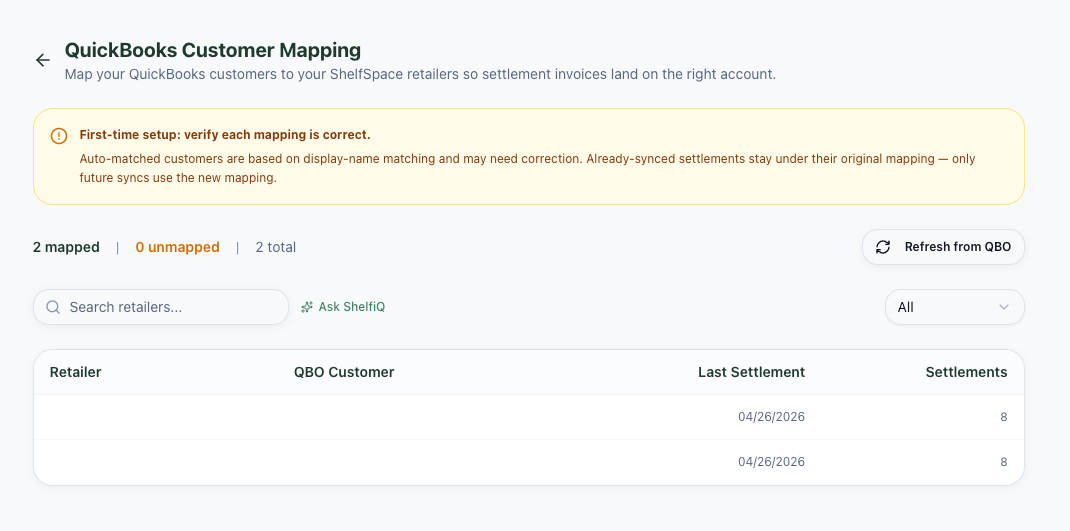
Name-based matching uses display-name LIKE matching, which can pick the wrong record when two of your customers have similar names — for example, "Acme Cannabis" and "Acme Wholesale LLC". Pre-mapping each retailer here is the cleanest way to guarantee correct attribution before the next settlement runs.
For each row: click the dropdown (or the Change link if it is already mapped), type to filter your QBO customers, and pick the right one. The mapping saves instantly. If a customer you expect is missing, click Refresh from QBO at the top.
One thing to know: changing a mapping does not re-link past Invoices. Already-synced settlements stay under whichever customer they were created against. Future syncs use the new mapping.
4. Map your items (or auto-create them)
Click Manage Items. You will see one row per Metrc product that has appeared on a settlement.
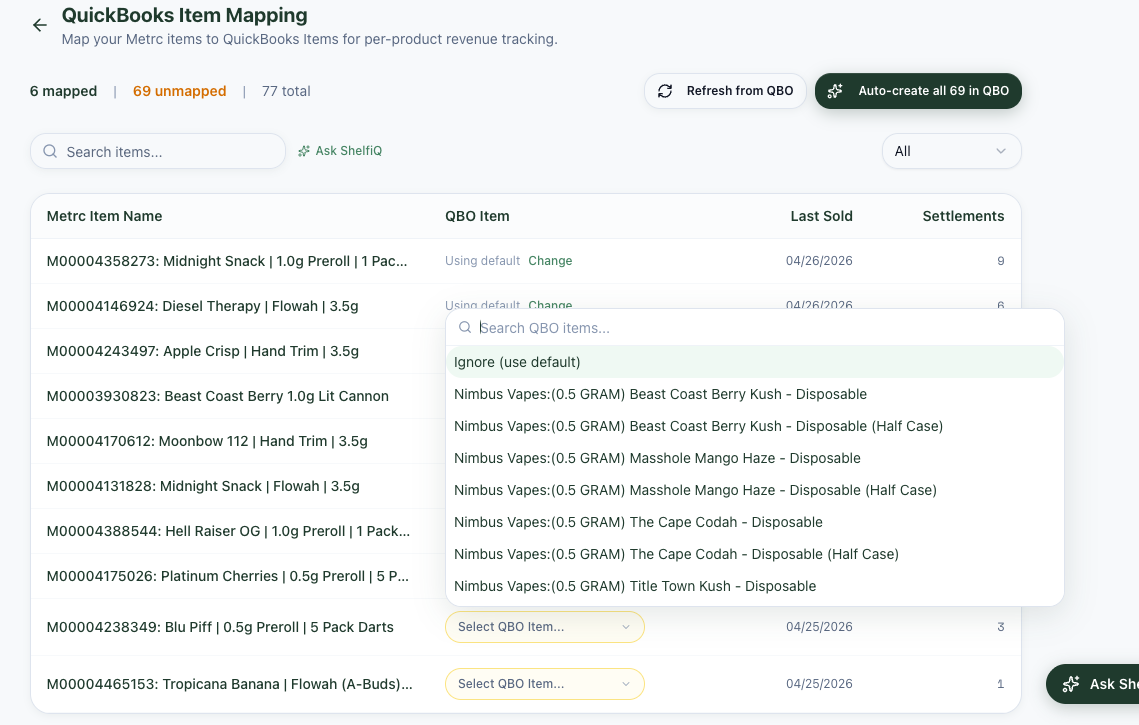
Three options per row:
- Map to a specific QBO Item. Click the dropdown, search by name, and pick. Best for products you want to track individually in QBO sales reports.
- Auto-create all in QBO. Click the green button at the top. We create a
Serviceitem in your QBO for every unmapped Metrc item, named identically to the Metrc item, posting to your Income Account. Quickest way to bootstrap the full catalog. - Use default (Ignore). Pick Ignore (use default). The item rolls up into a single fallback line called
ShelfSpace Consignment Sales. Best for products you do not need to track individually.
You can change any row at any time — even ones already set to "Using default" — by clicking the Change link. New mappings apply to future settlements; past Invoices keep whatever line items they synced with.
Two notes on the dropdown: the QBO catalog uses parent/child item names (e.g. Flower:Indoor:Hybrid), so the full path shows to disambiguate identical leaf names. And only Service, Inventory, and NonInventory item types appear — Bundle and Category types are excluded. If you need a product that is a Bundle in QBO, create a Service version for ShelfSpace to map against.
5. Optional: turn off auto-payment if you reconcile manually
By default, ShelfSpace pushes both an Invoice and a matching PaymentReceived to QBO for each settlement — the Invoice goes out at approval, the Payment goes out as soon as the check is issued, and AR aging clears on its own. Most vendors leave it on.
If you reconcile deposits manually via QBO's bank feed and the Receive Payments workflow, turn off the Auto-create Payment in QuickBooks switch on the QuickBooks settings panel. With it off, ShelfSpace pushes only the Invoice — no PaymentReceived — and you record the deposit yourself when the bank feed picks up the cleared check. The toggle is forward-looking: flipping it does not retroactively change settlements that already synced.
6. Backfill historical settlements
If you connected QBO after already running settlements on ShelfSpace, those past settlements are not yet in your QBO. To push them, go back to Settings → QuickBooks Online and click Sync Historical Transactions.
The button processes up to 50 settlements per click. If you have more than 50 unsynced, just click again — keep clicking until the panel shows zero pending. Each historical settlement creates the same Invoice + PaymentReceived pair that future settlements do.
7. Done — what happens next
Once setup is complete, you do not need to touch anything. Each settlement triggers Invoice + Payment within seconds of approval. The portal shows recent sync activity with status badges. Failed rows retry every 10 minutes on their own.
No more re-keying line items off a check stub. No more wondering whether last week's payout got booked to the right customer.
Once it is connected, you stop touching it. Settlements land in QBO before you know they happened.
What if my books are closed?
If a settlement's accrual week falls inside a closed QBO period, we do not ask you to reopen the period. The push retries with today's date as the TxnDate. The DocNumber stays as the settlement reference (SR-...) and the check number stays on the PaymentReceived's PaymentRefNum, so your bank-feed match still works. You will see the row flip from Failed to Synced on the next retry cycle, within 10 minutes.
Troubleshooting in 60 seconds
- A row shows "Failed". Click Retry. Most failures recover on retry. If it still fails, the error message gives the QBO reason; failed rows also retry every 10 minutes on their own.
- "Account Period Closed". We handle this for you — see the section above.
- Wrong customer on a posted Invoice. Open Manage Customers, click Change, and pick the right one. Future settlements use the new mapping. To re-route the existing Invoice, edit it directly in QBO.
- New QBO item or customer not in the dropdown. Click Refresh from QBO.
- Connection expired banner. Click Reconnect to QuickBooks. Refresh tokens expire after 100 days of inactivity. Reconnecting takes 10 seconds.
- You deleted an Invoice in QBO directly. Click Re-sync to QBO on that settlement. ShelfSpace detects the deleted Invoice and pushes a fresh one. If you had already linked a check Payment in QBO, deleting the Invoice doesn't auto-delete the Payment — clean up the orphan unapplied Payment manually.
Need help?
Email us at support@shelfspace.pro, or message ShelfiQ at shelfiq@inbound.shelfspace.pro in plain English — ShelfiQ has full context on your account and can answer most "where do I see X" or "why did Y happen" questions instantly. The reference version of this guide lives in our docs at Cannabis Vendor QuickBooks Setup.
If you are not on ShelfSpace yet and your retailer is asking about it, see what ShelfSpace does for vendors (a portal across every retailer you sell to, weekly checks), or read the retailer-side QuickBooks integration for the other half of the picture. There is also a case study on what real-time QBO sync looks like for the dispensary on the other end of these settlements.