Step-by-step guide
ShelfSpace Vendor Guide
How to see your sales and get paid -- one screen at a time.
Getting Started
Start here. This chapter gets you signed in and shows you where your money and your sales live before the role-specific chapters below.
Sign in and get your bearings
You reach ShelfSpace at ourshelf.space and sign in with your work email and password. For security, we send a one-time code to your email to confirm it's you before you're in. Once you're in, the dashboard is your home screen.
Your dashboard at a glance
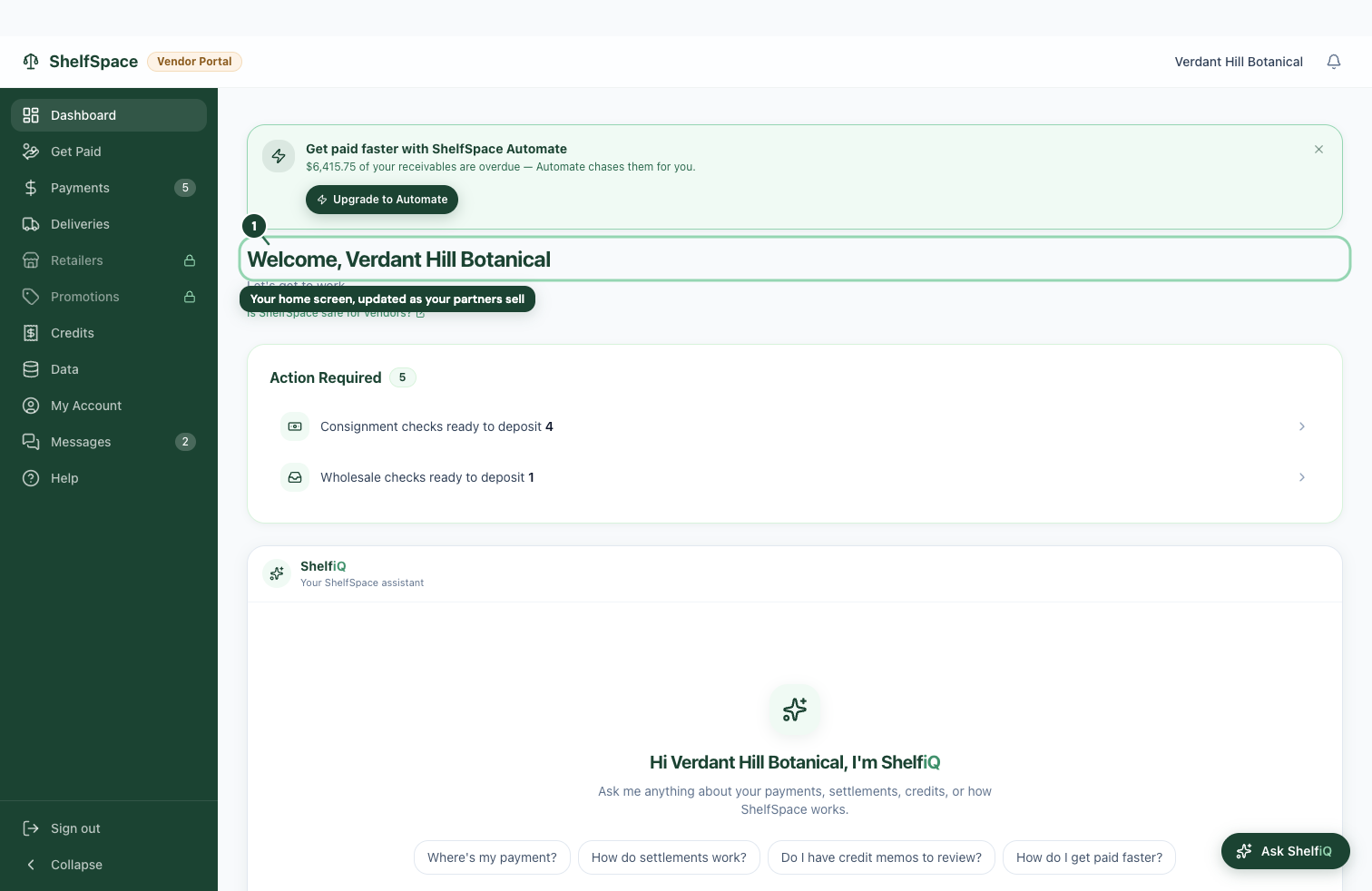
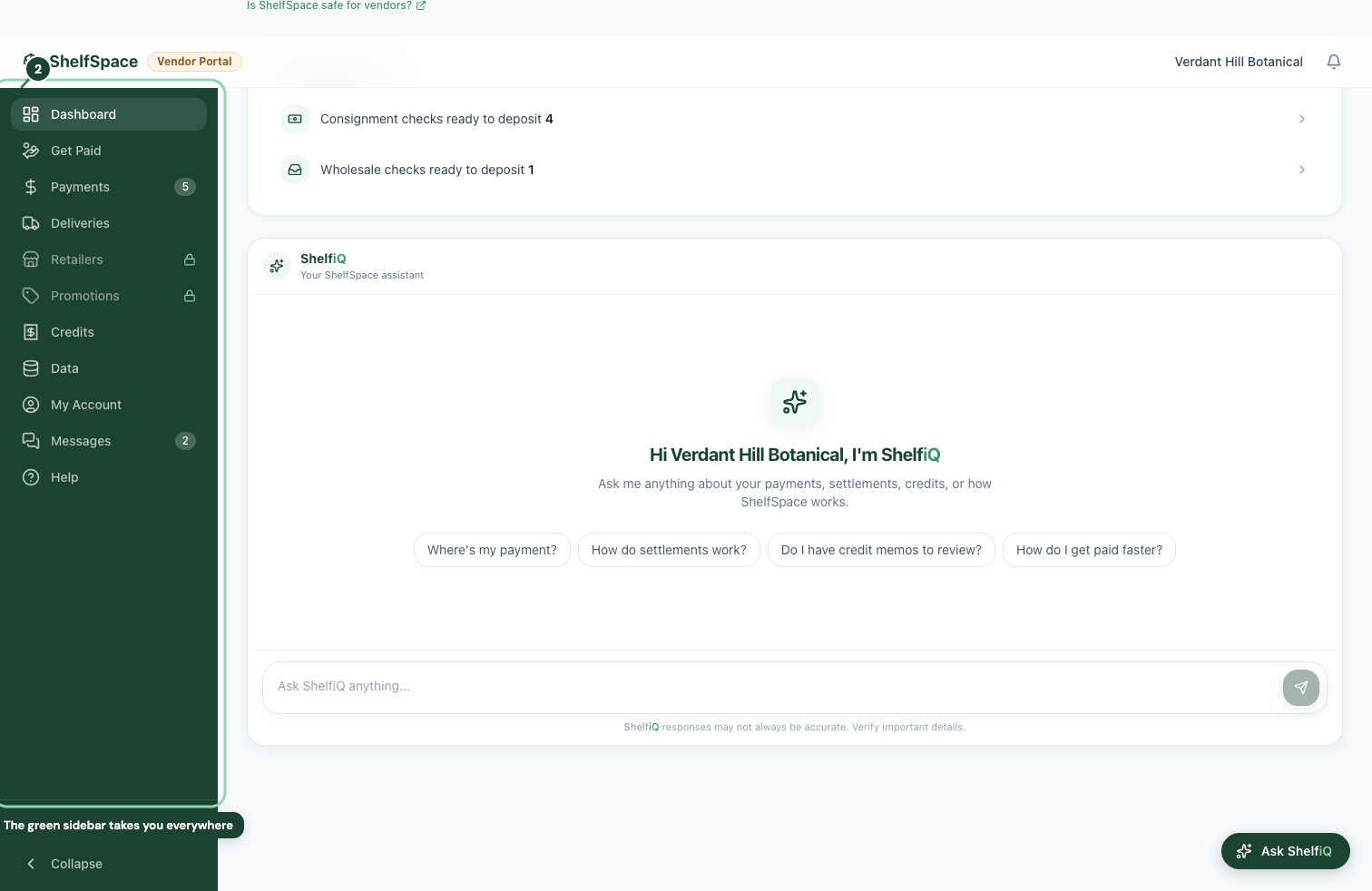
Find your way around
Get help when you need it
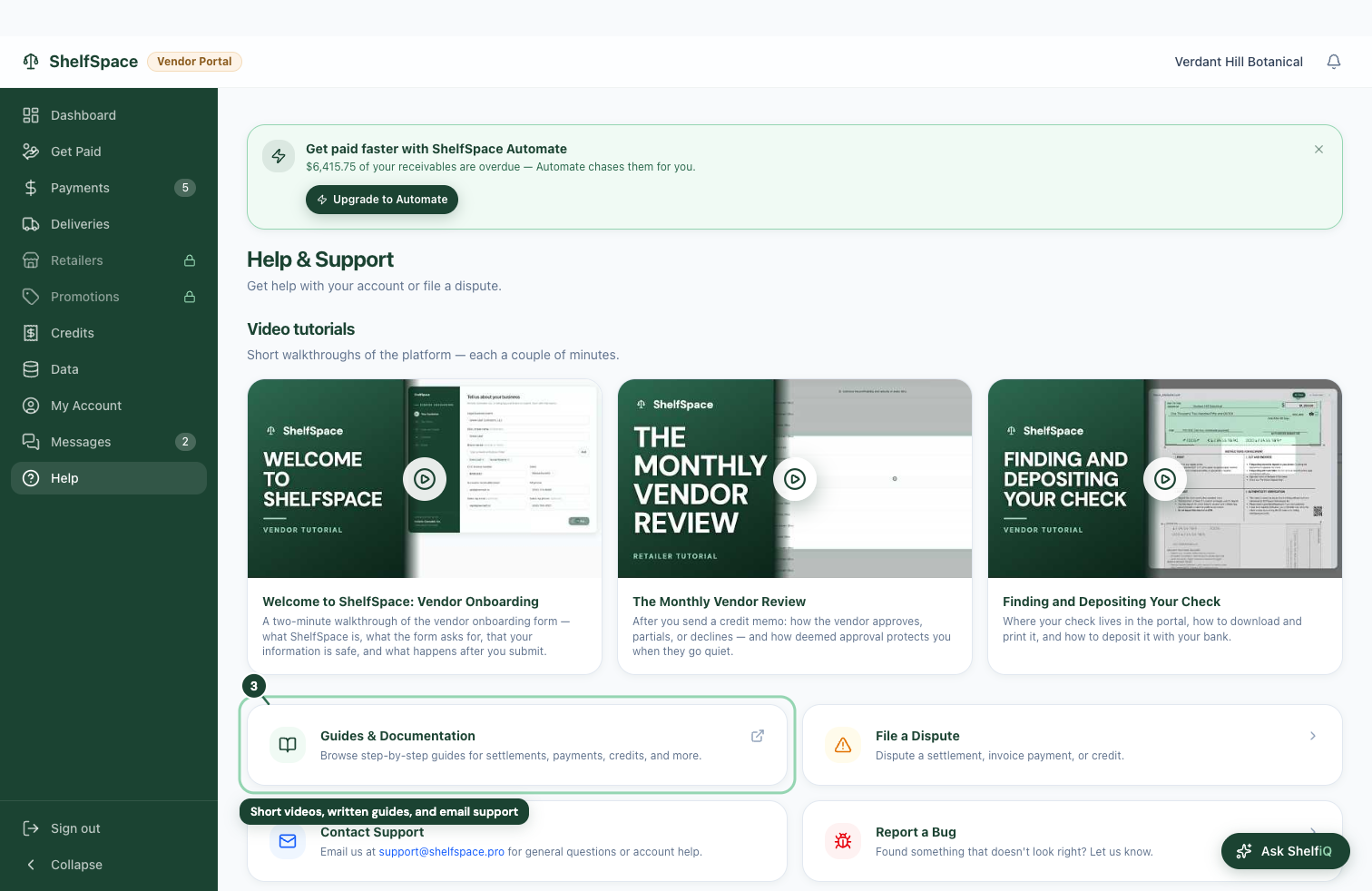
Stuck on something? Help is one click away, and a real person answers.
Guides, videos, and a real person
Getting Paid
This chapter is for the owner or whoever handles the money -- the account that can act. It's where you see what you're owed, deposit your checks, read exactly how each payout was figured, handle the credits your partners send you, and push back when something looks off. Everything below is one screen at a time.
See your payments and deposit your checks
One screen holds every payout and tells you -- honestly -- where the money is. A payout reaches you either as a check you download here, or -- where your retailer has bank transfers turned on -- as a bank transfer straight into your bank account, usually 1 to 3 business days after it's sent.
Every payout, and what its status really means
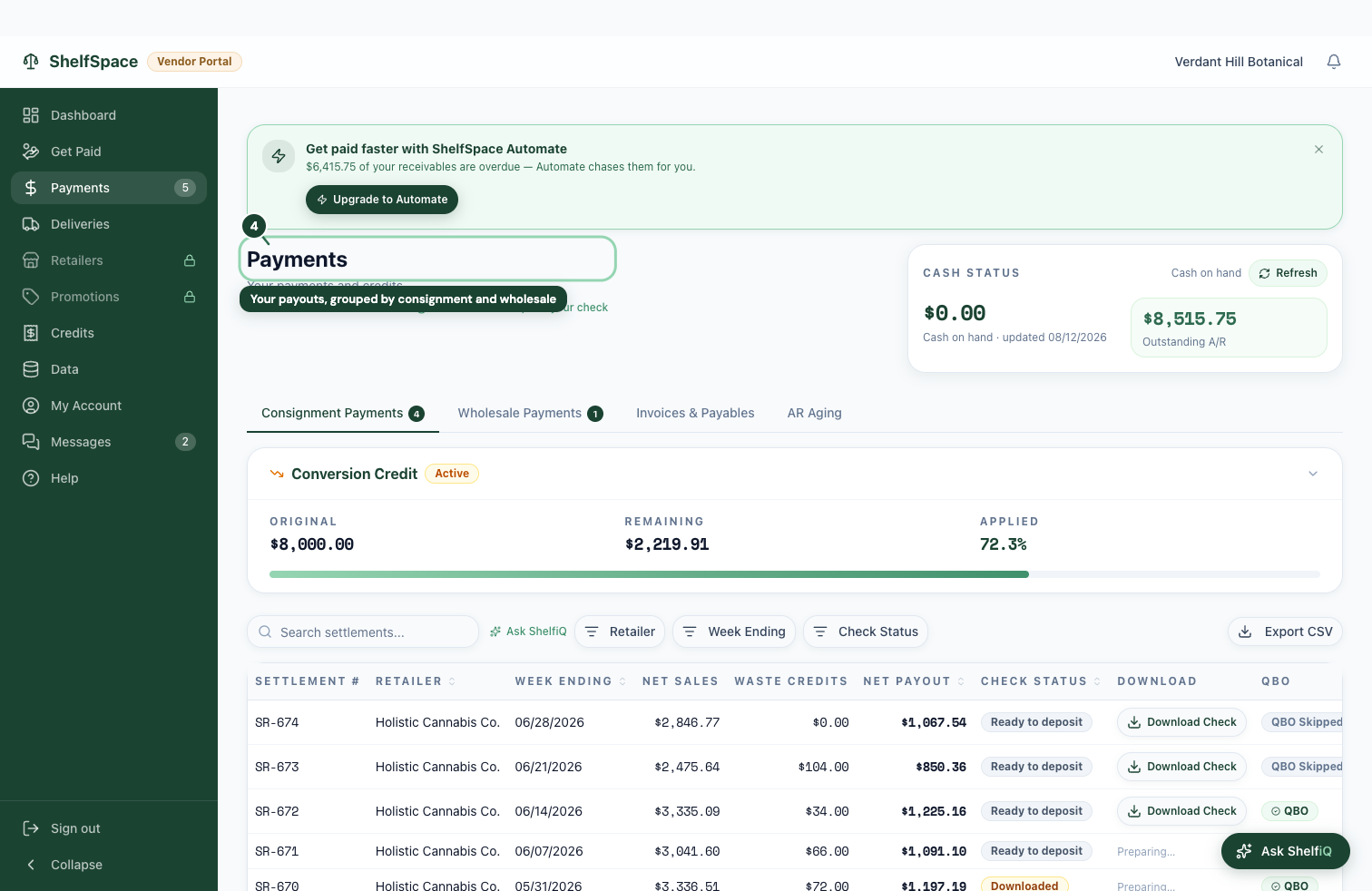
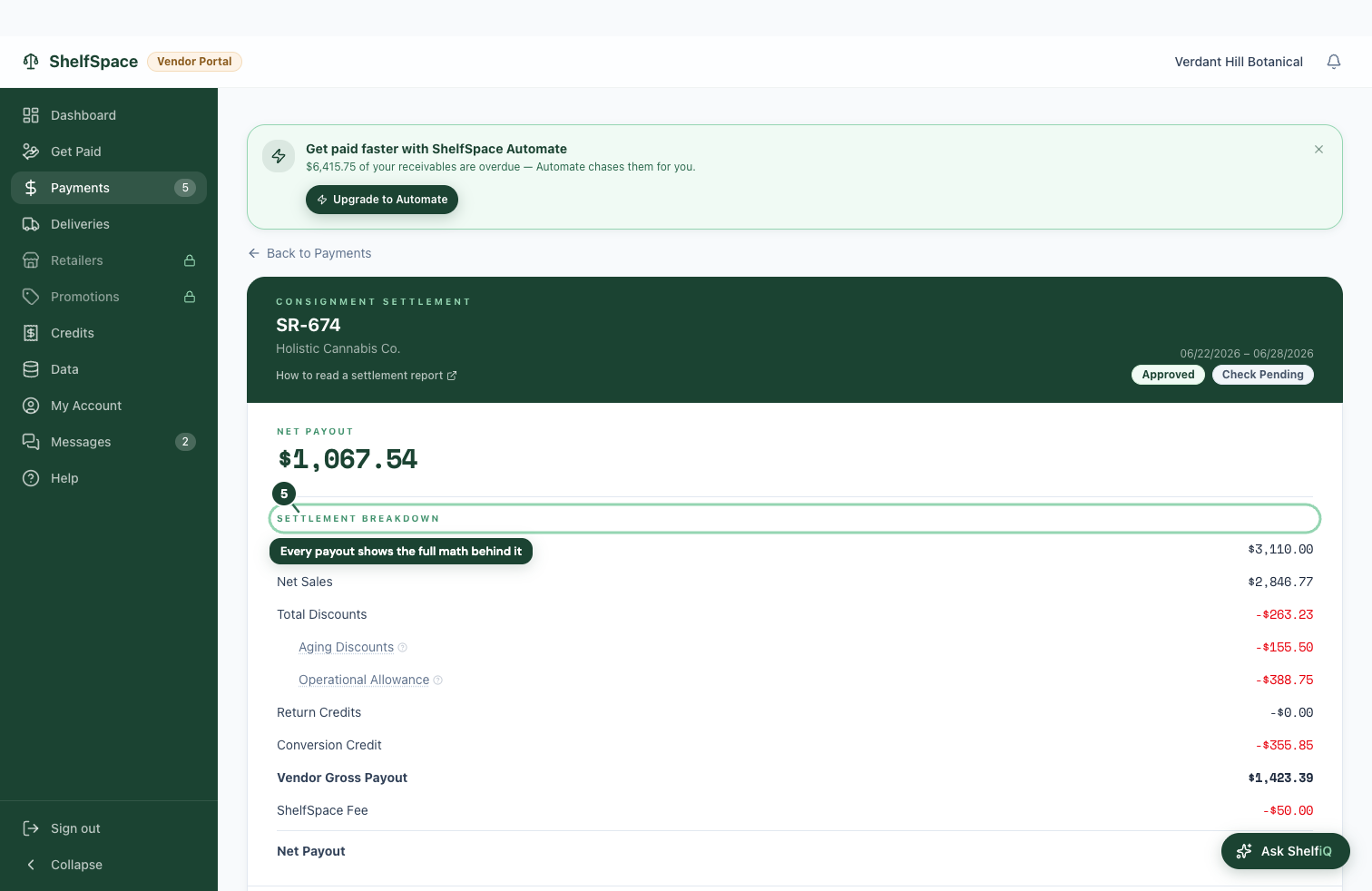
See exactly how a payout was figured
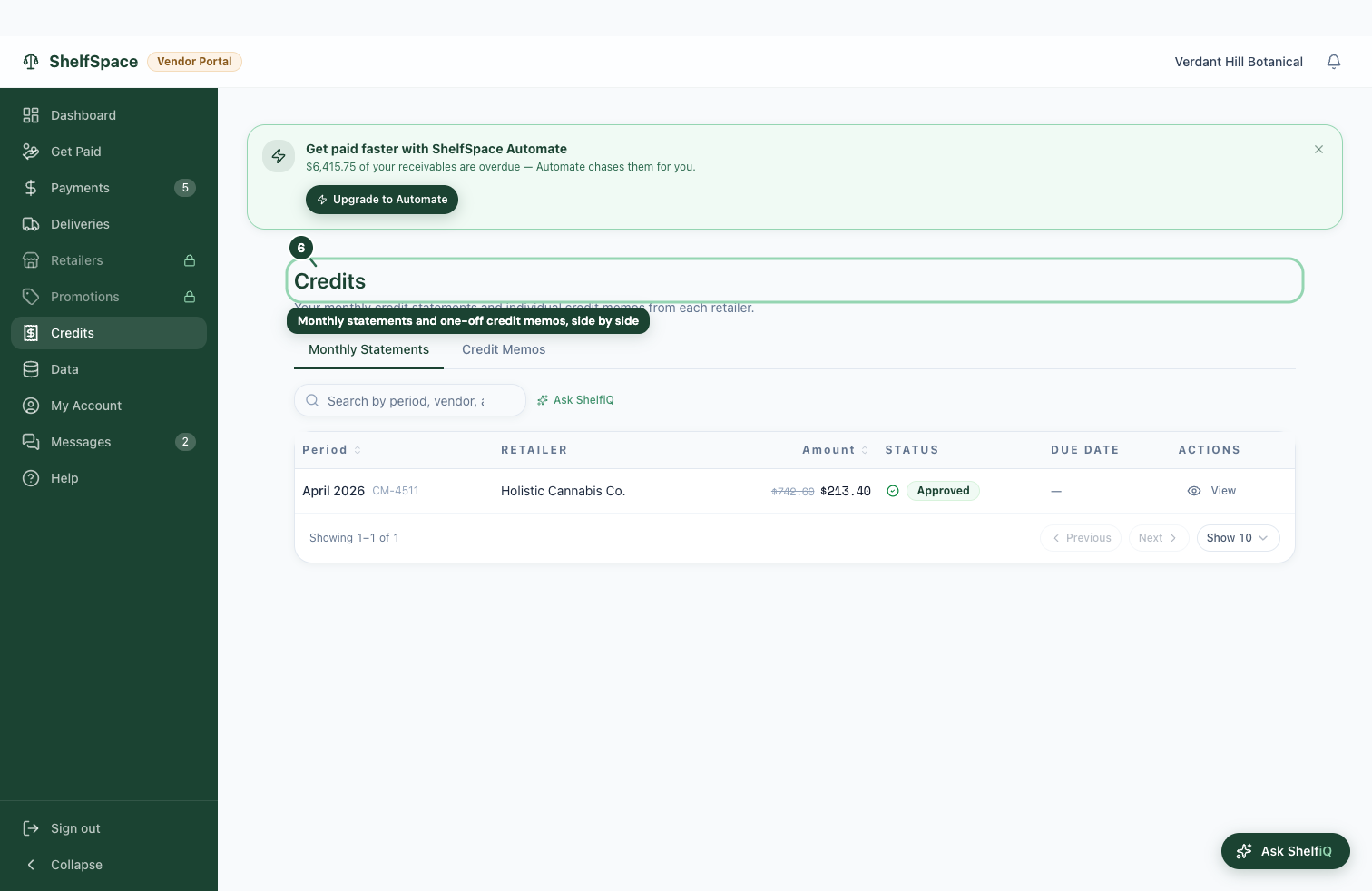
Handle credits and monthly statements
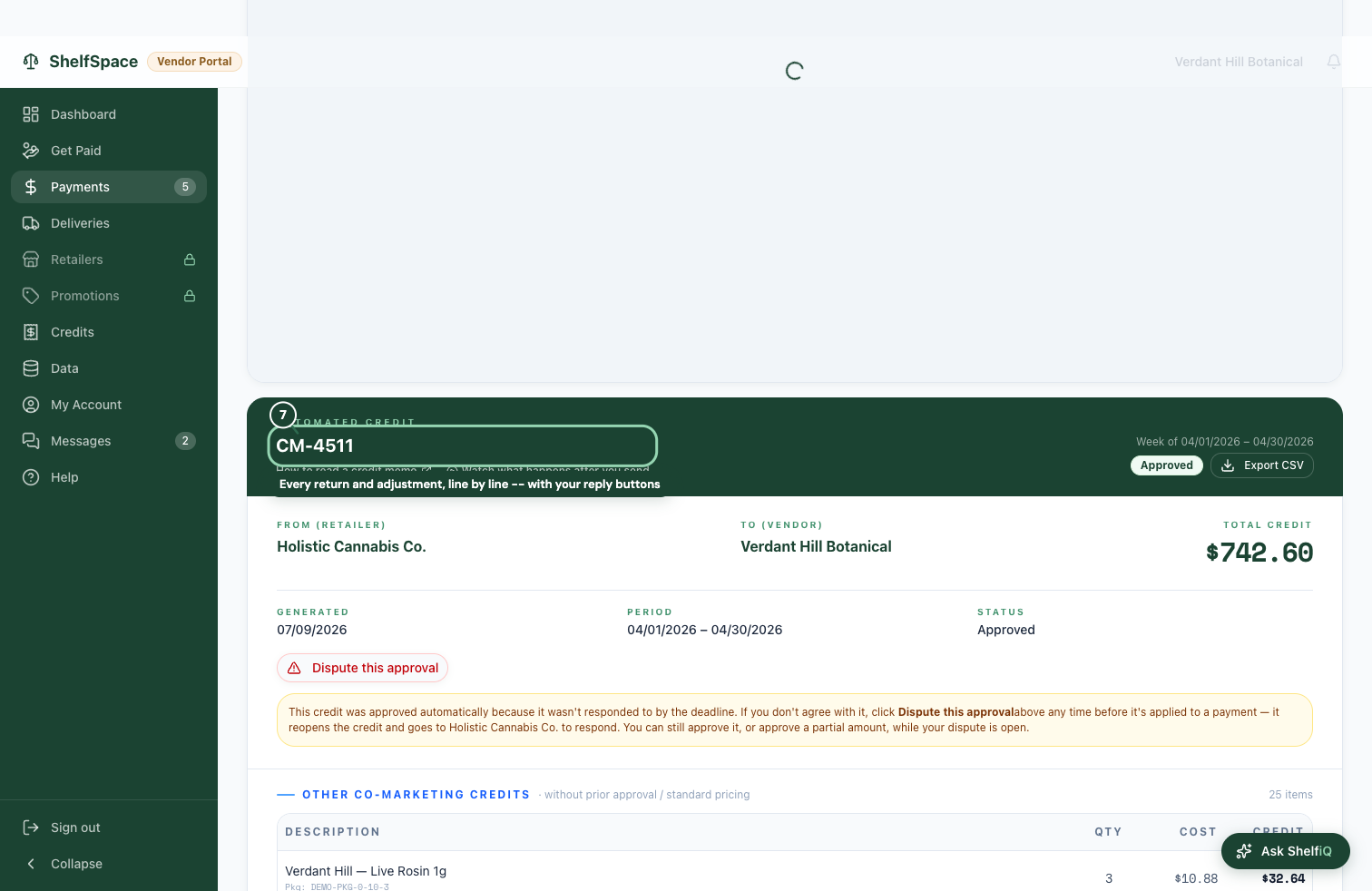
When product is returned or discounted, your partner sends you a credit -- and each month's credits arrive as one statement. You read it, and you approve it, adjust it, or push back.
Every credit and statement in one place
Read a statement and respond
Push back when something's off
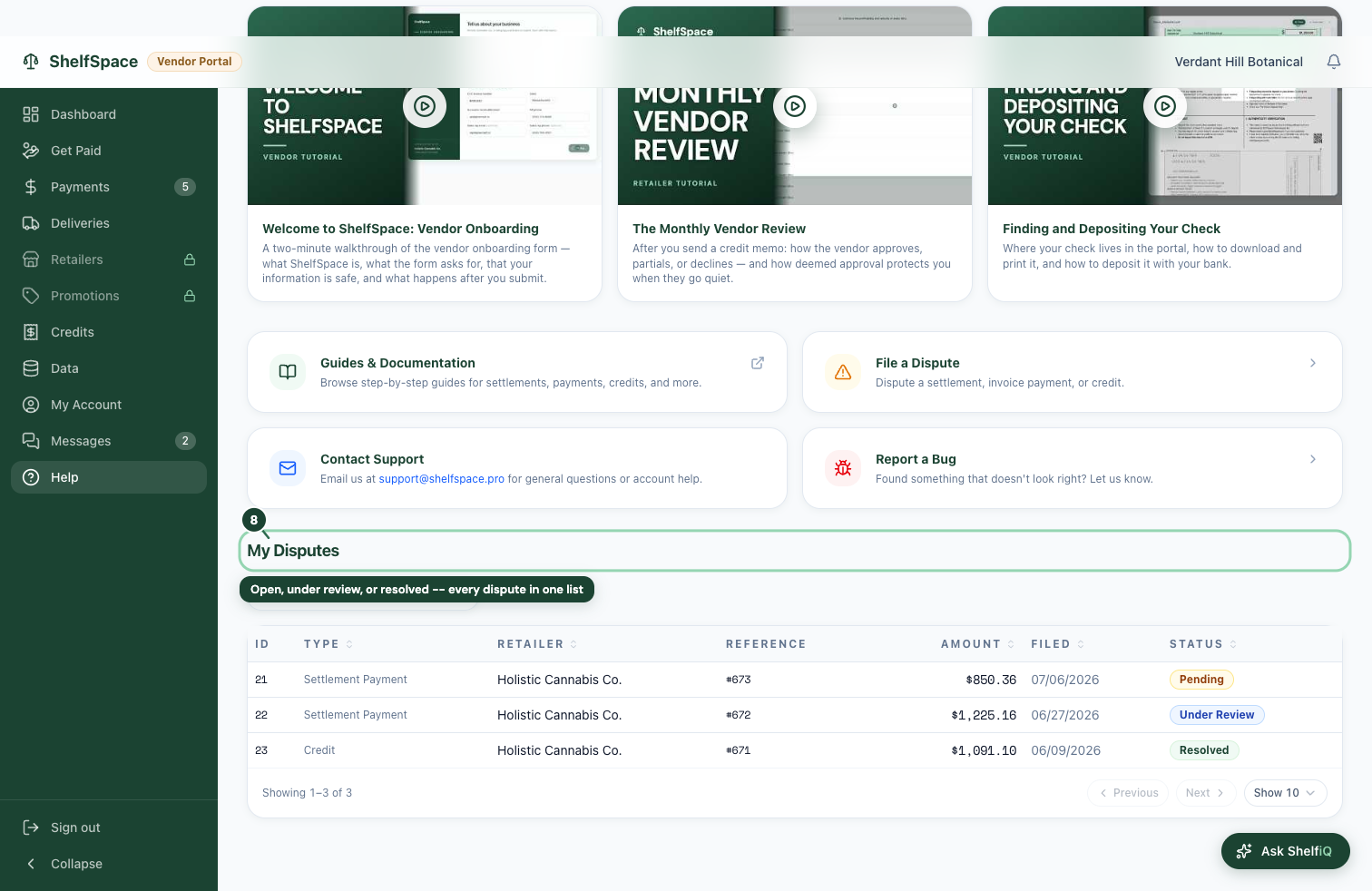
If a payout or a credit doesn't look right, you don't have to email around for it -- you raise it here and track where it stands.
File a dispute and track it
Sales & Inventory Visibility
See how your product is selling and where it lives -- your sales, the stores that carry you, what you've shipped, and the promotions and price drops in play. Viewing these screens is open to your whole team; a couple of them also let you take an action, like offering a promotion or answering a price-drop request.
Your sales and the stores that carry you
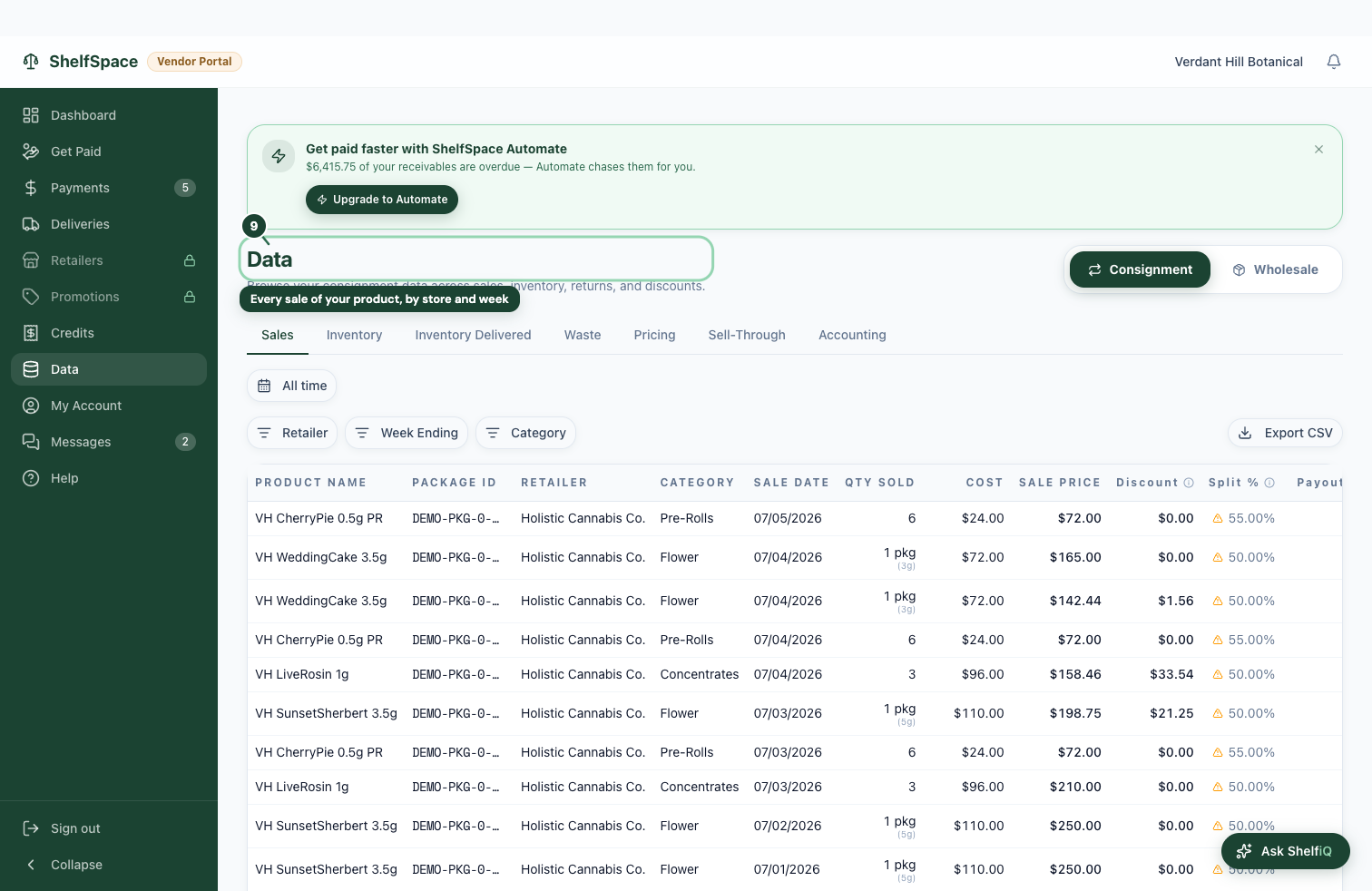
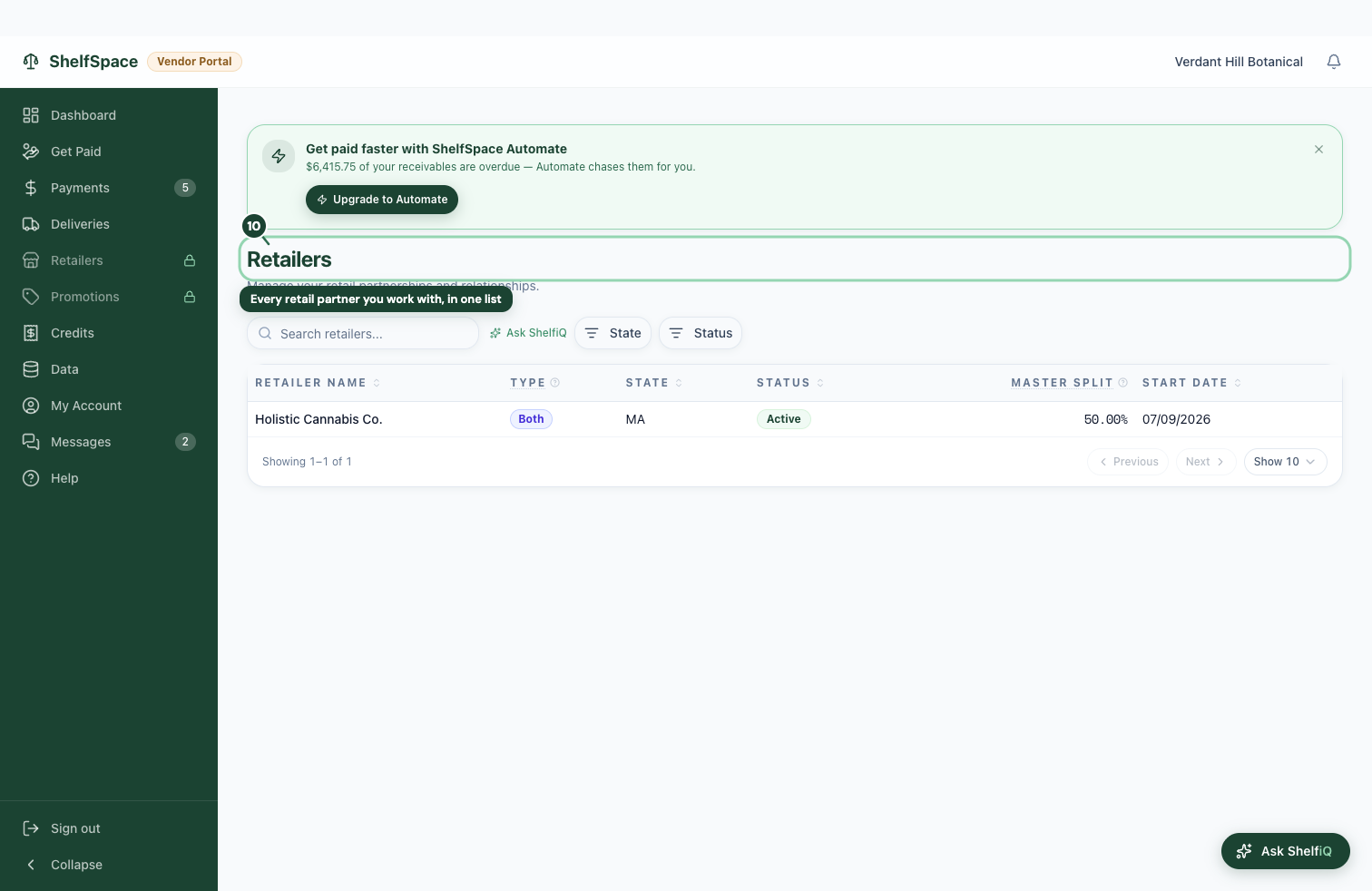
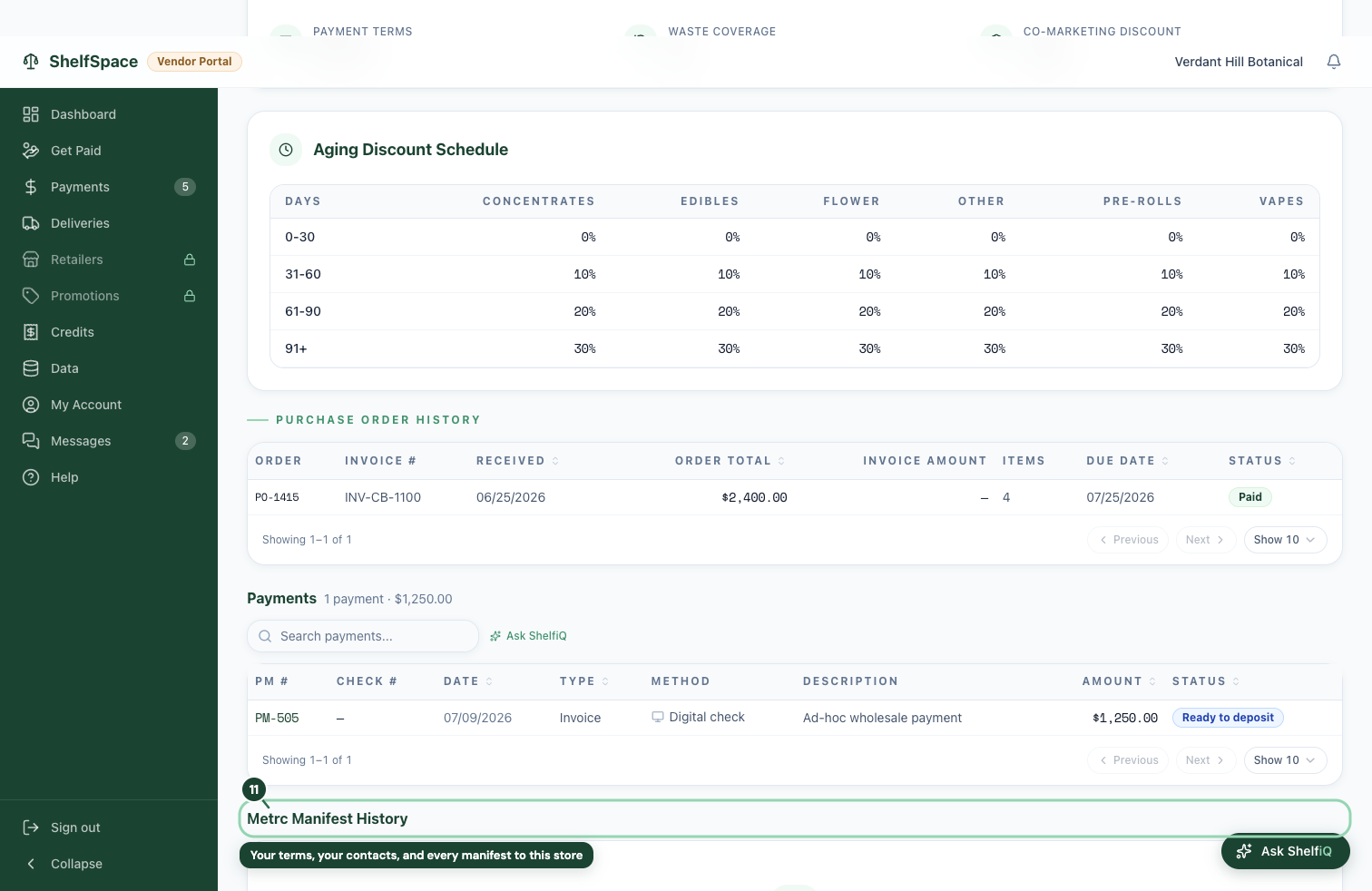
Start with what actually sold and where. One page holds your sales detail; another lists every retail partner, and you can open any one to see your terms and your shipment history with them.
See every sale of your product
See how much of each invoice has sold

See every store that carries you
Open one partner to see terms and manifests
Shipments, promotions, and price drops
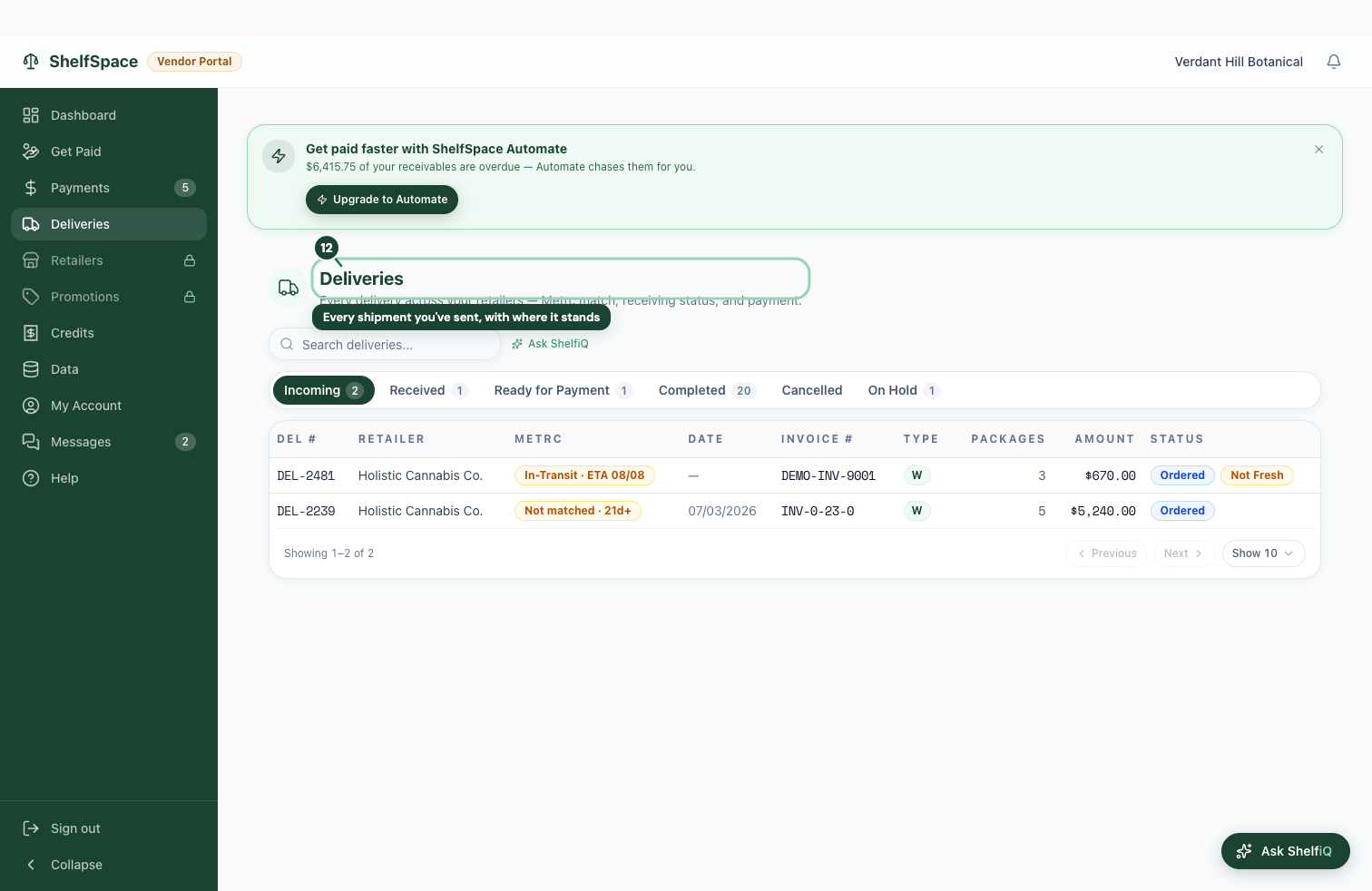
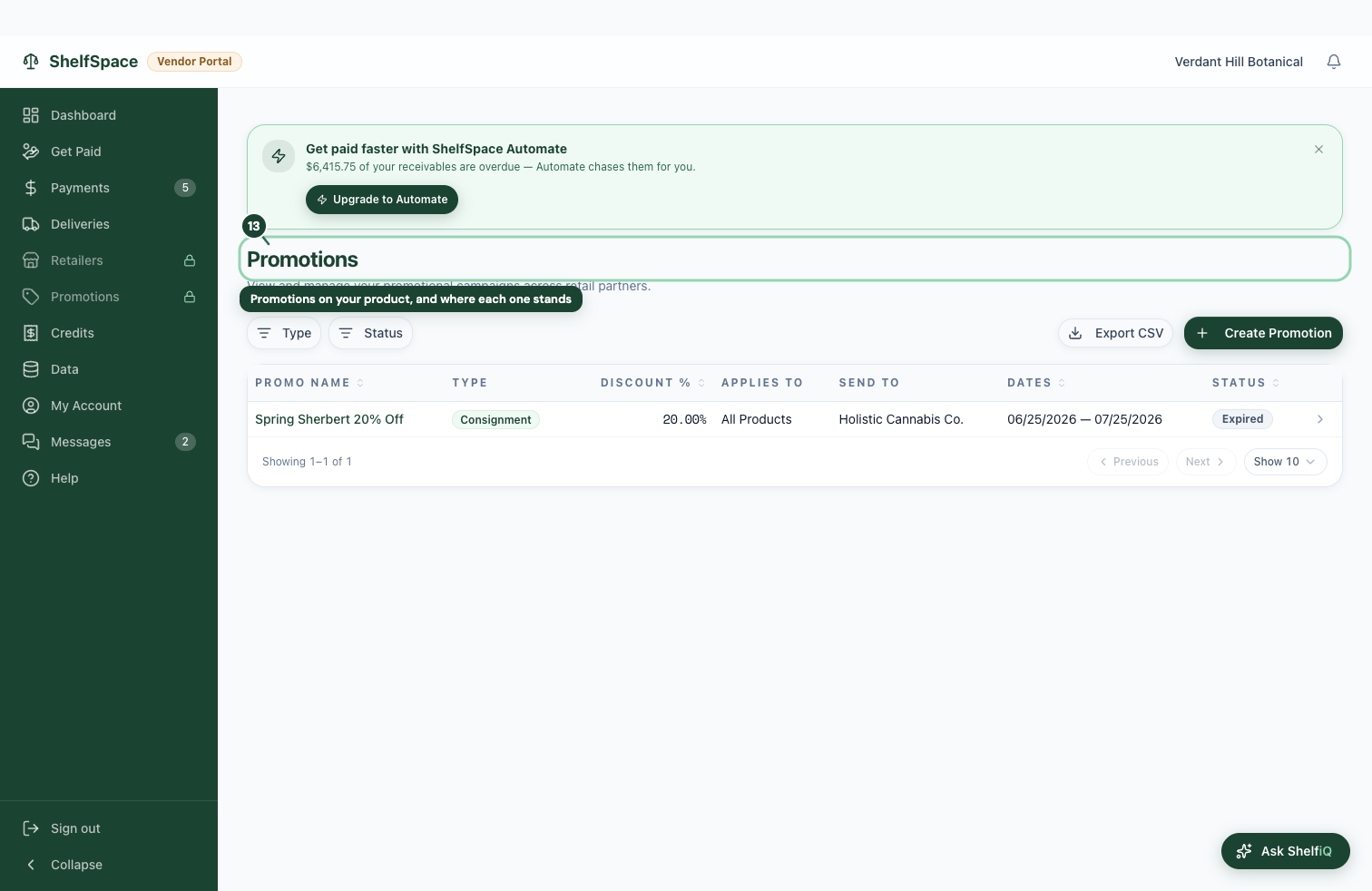
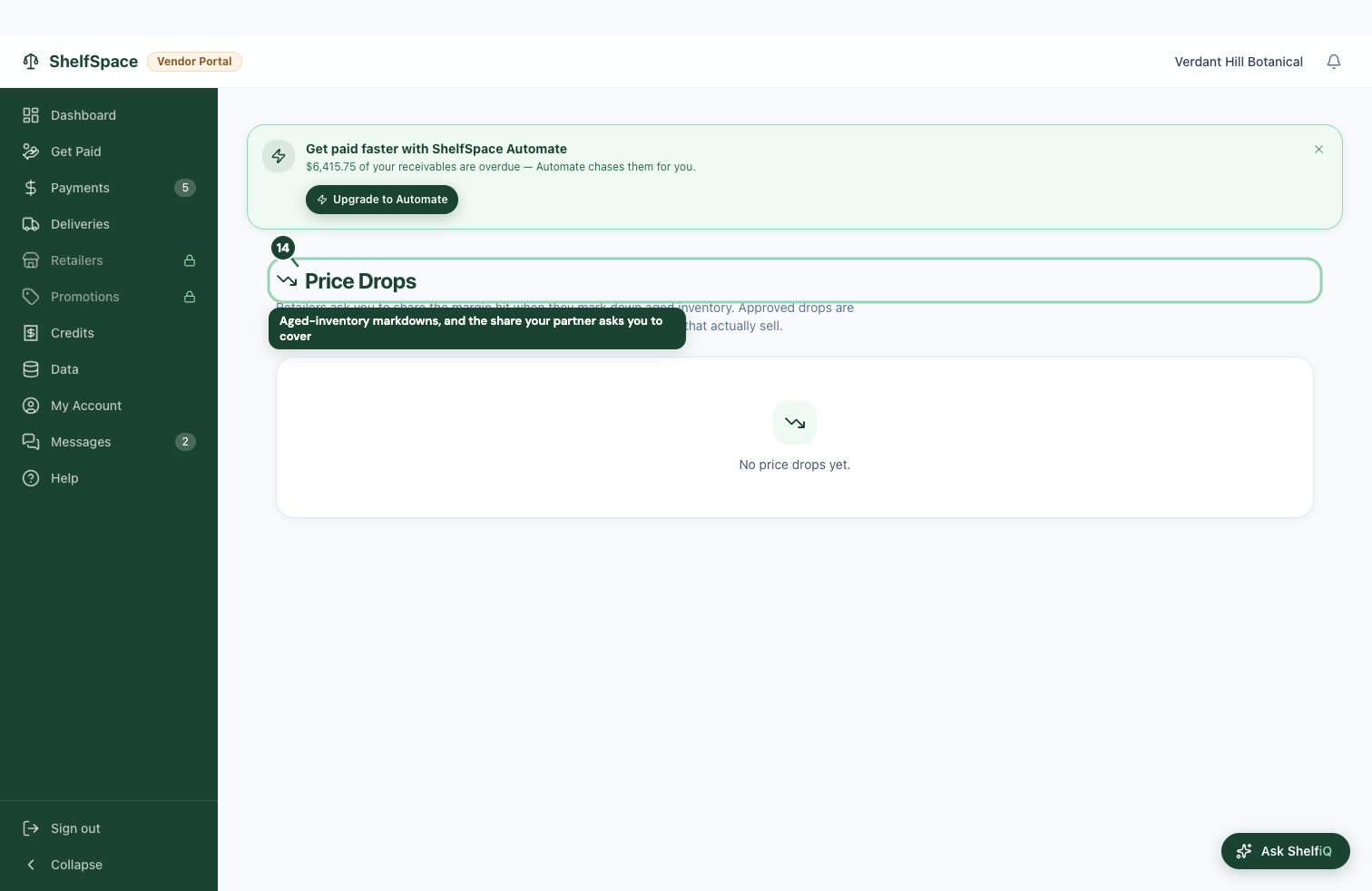
The rest of your visibility: what you've shipped and where each shipment stands, plus the promotions and aged-inventory price drops your partners are running on your product.
Track what you've shipped
See the promotions on your product
See price drops on your aged product
Read-Only Access
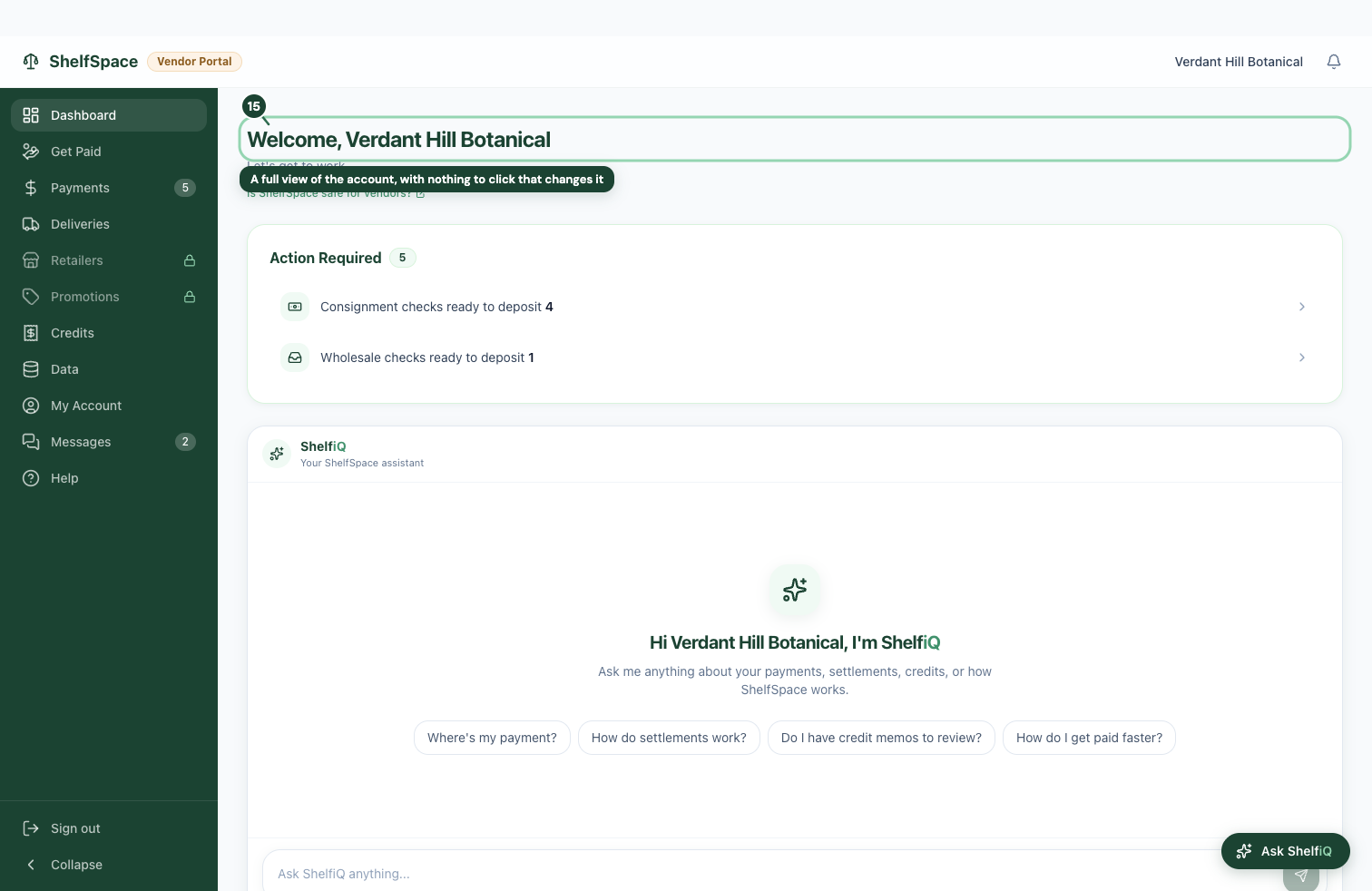
Some people on your team should mostly watch, not change things. That's the view-only seat -- the most limited login. It reads every screen in this guide -- payouts, credits, sales, deliveries -- and the only thing it can act on is a promotion a retail partner proposes. Give it to anyone who needs to keep an eye on the account without touching the money or the settings.
What the view-only seat can and can't do
Here's the honest line between the seats, so you hand out the right one.
The same screens, without the action buttons
Full Feature Reference
The rest of the portal, screen by screen -- the tools you'll reach for less often, but should know are here. Bill your own buyers, open a single shipment or promotion in full, manage your account and your team, and keep your books in sync. Everything below is what the owner or accounts-receivable seat can see and do.
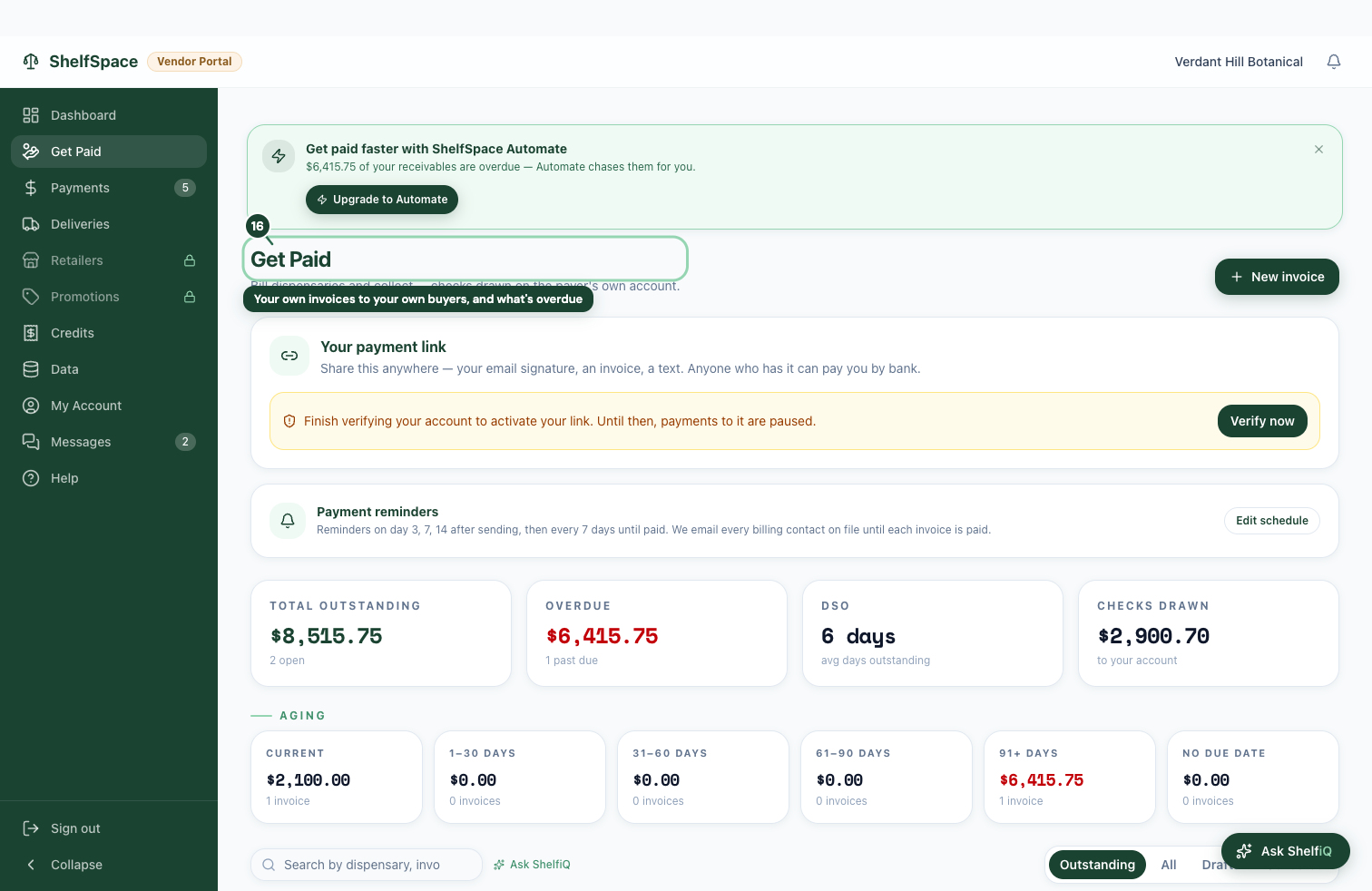
Bill your own buyers and collect
Separate from the payouts your ShelfSpace partners send you, this is your own billing desk -- for invoicing the shops you sell to directly and chasing what they owe.
Invoice your buyers and follow up
Open one order, bill, or promotion in full
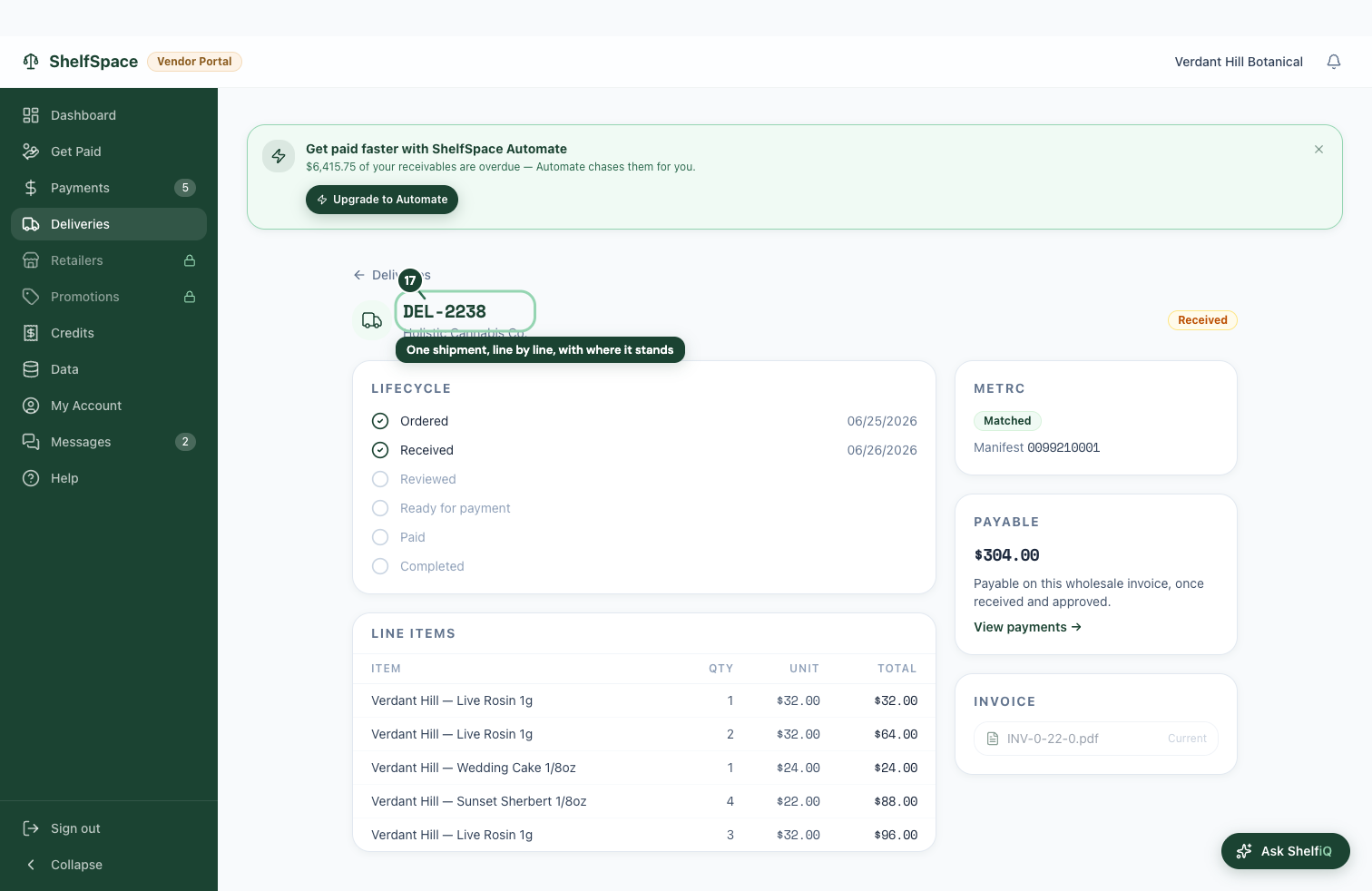
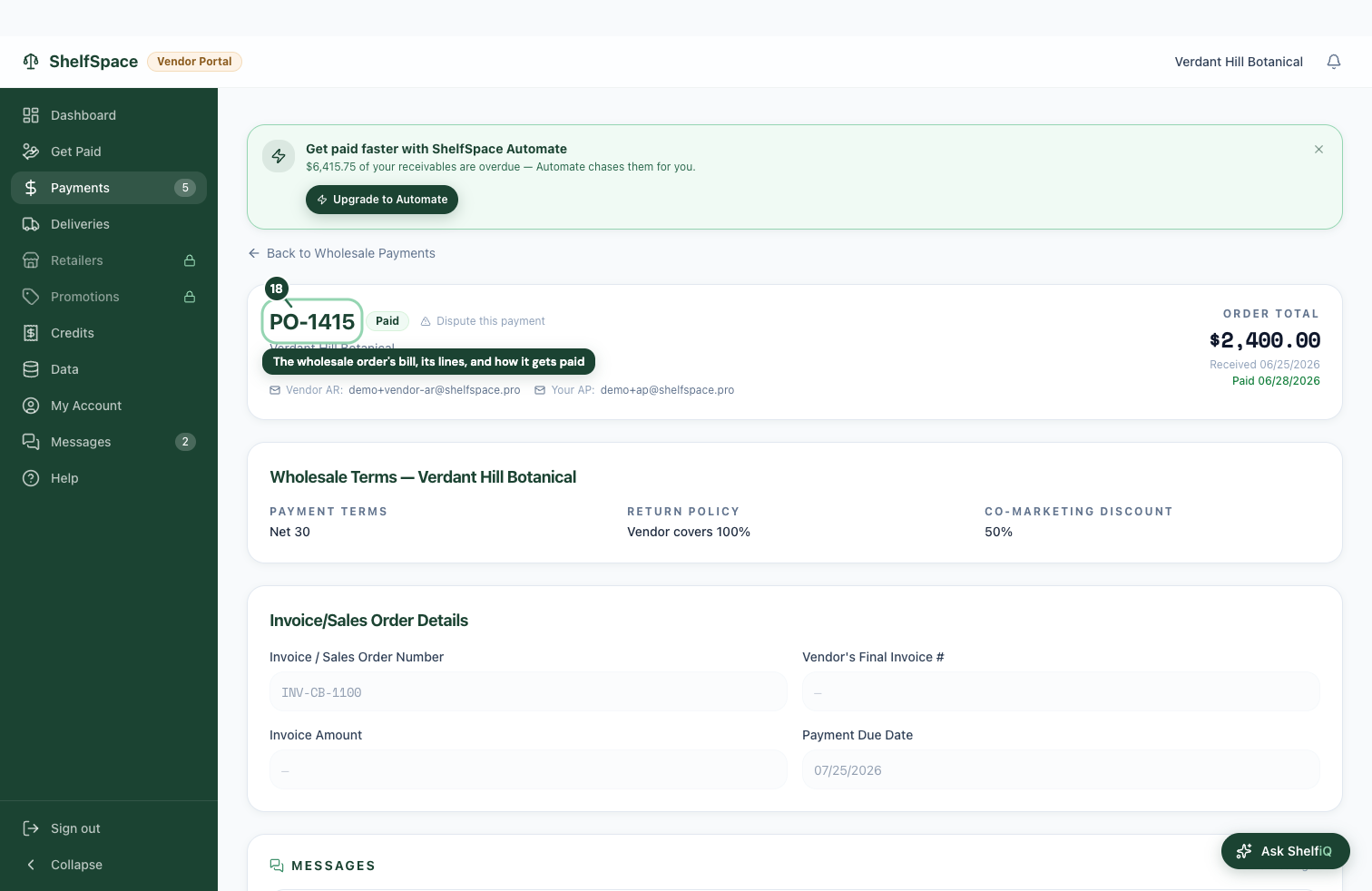
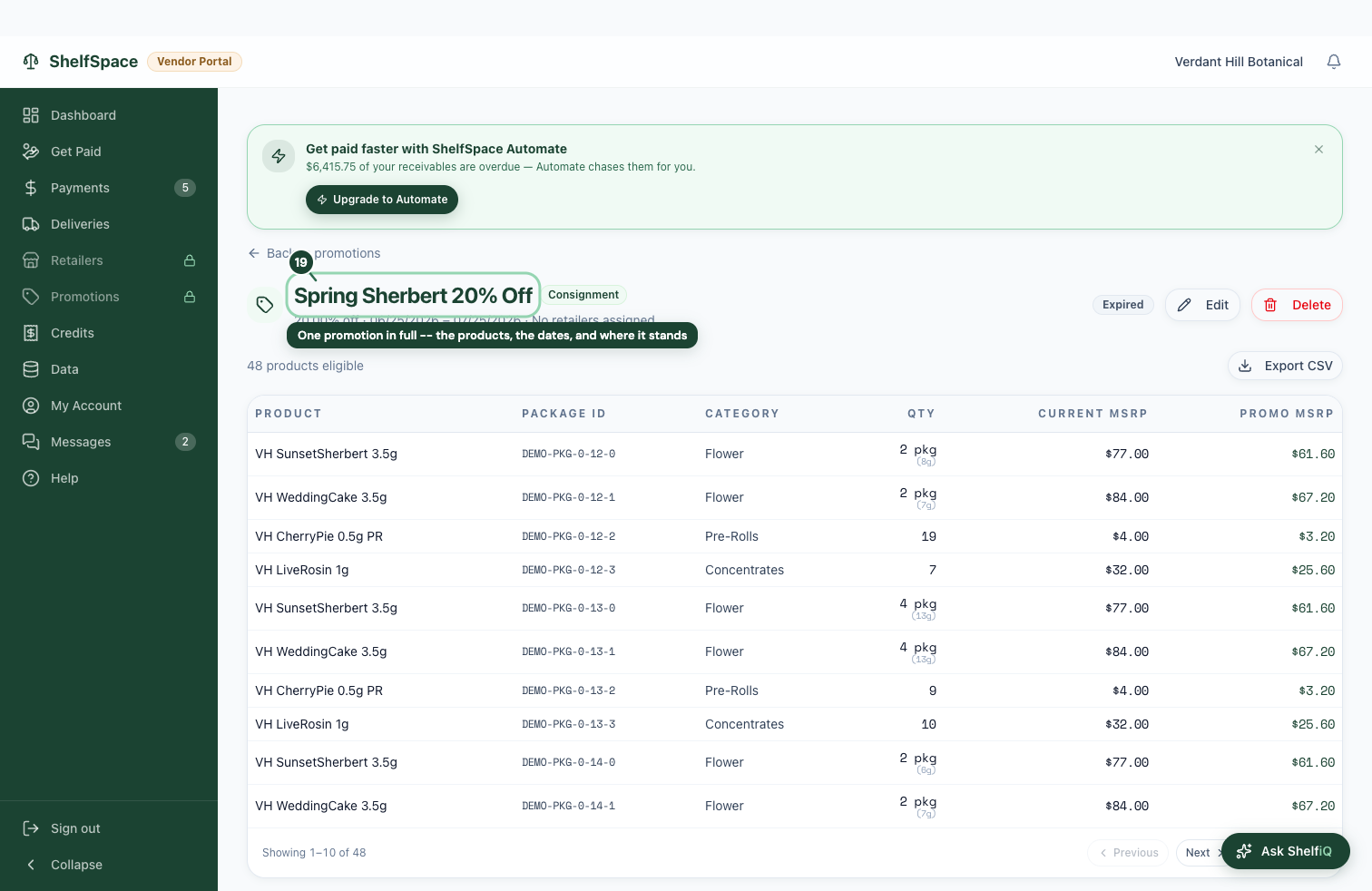
Every list drills into a detail page. Here are the three you'll open most: a single shipment, the bill behind a wholesale order, and one promotion end to end.
Open a shipment for the full detail
See the bill behind a wholesale order
Open one promotion end to end
Your account, team, plan, and messages
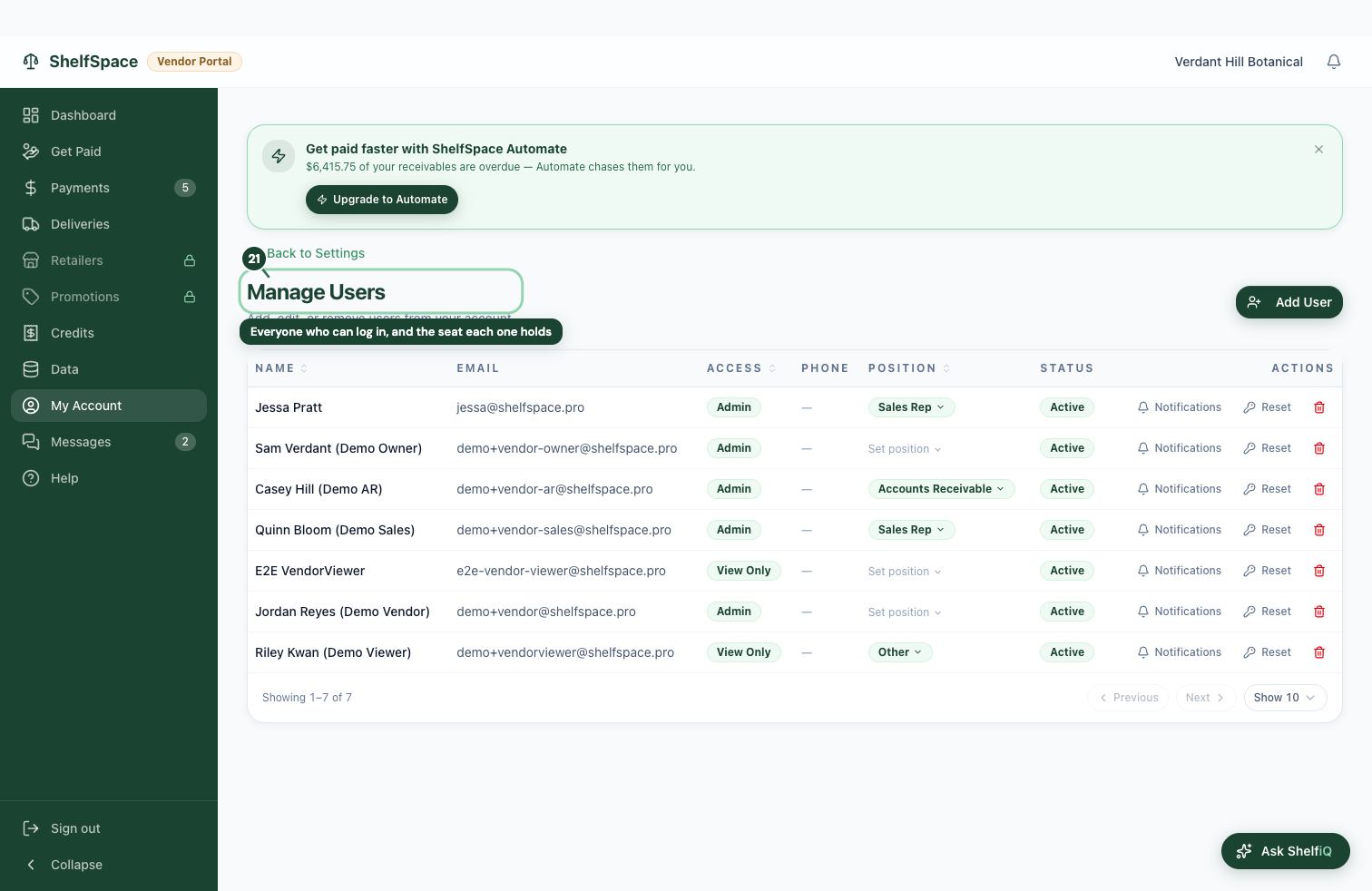
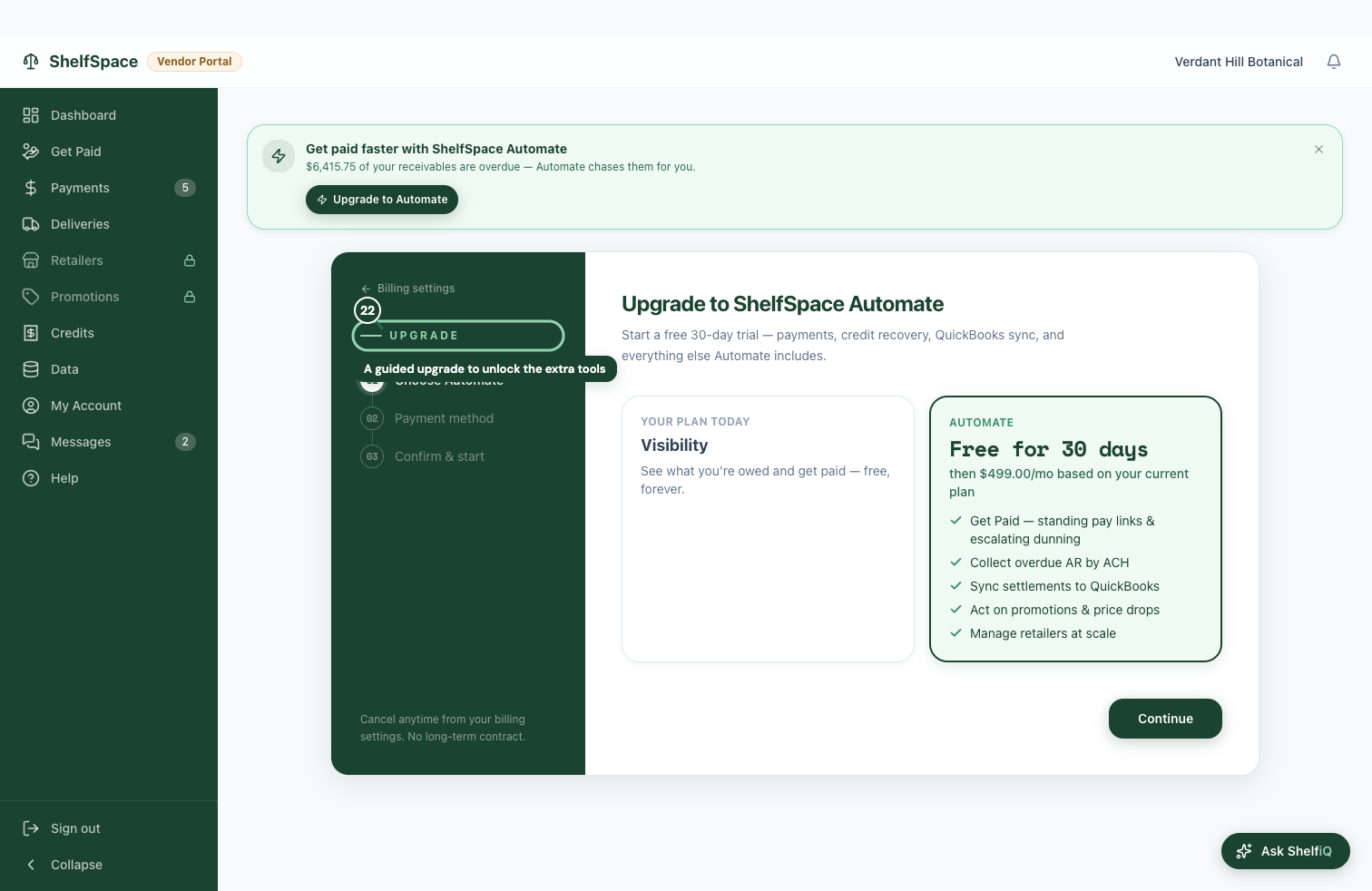
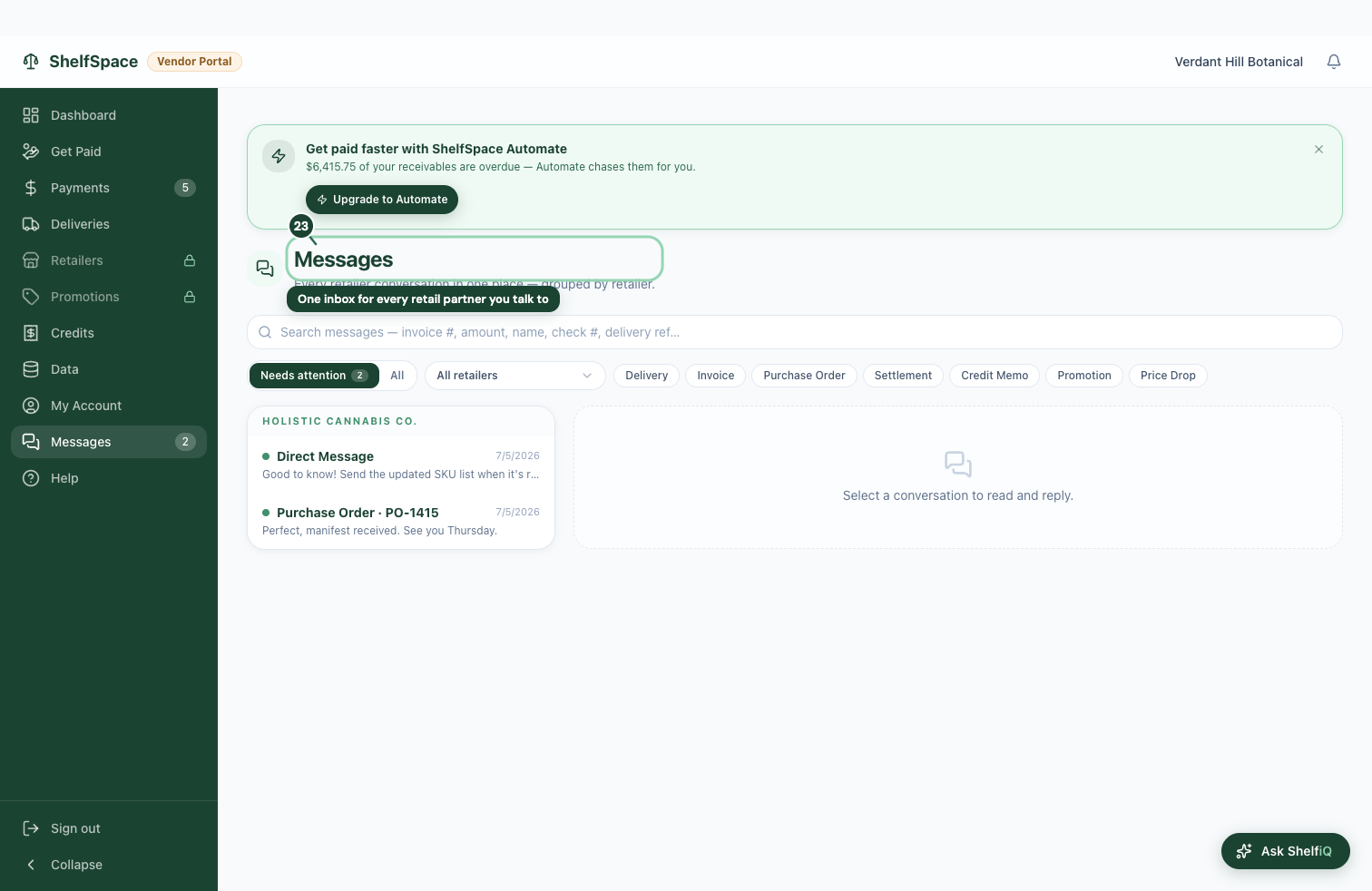
The settings side of the portal: your business profile and bank details, who on your team can log in, turning on paid features, and the conversations you're having with your partners.
Your business profile and bank details
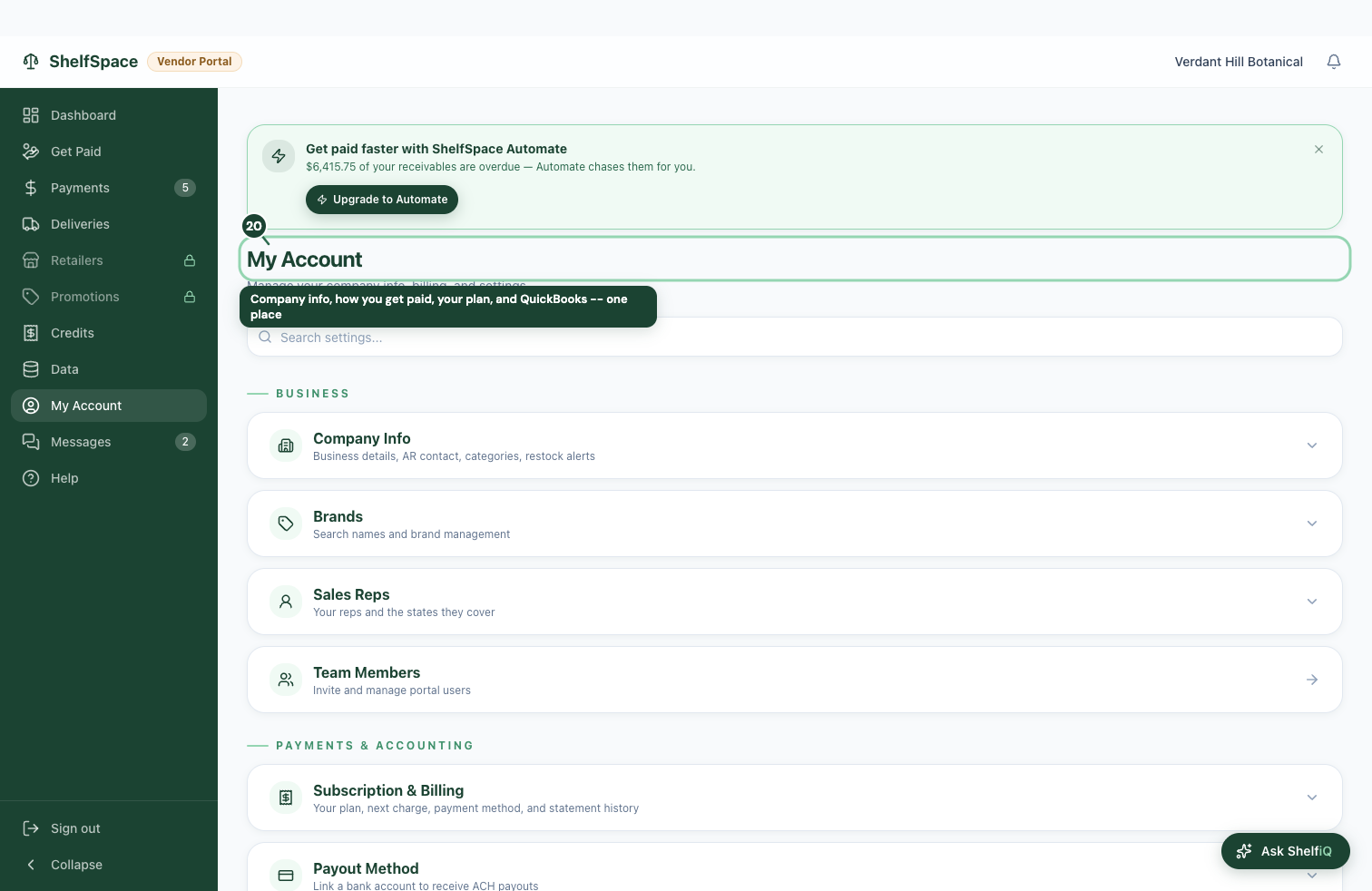
Add teammates and set what they can do
Turn on the paid features
Every conversation, grouped by partner
Keep QuickBooks in sync
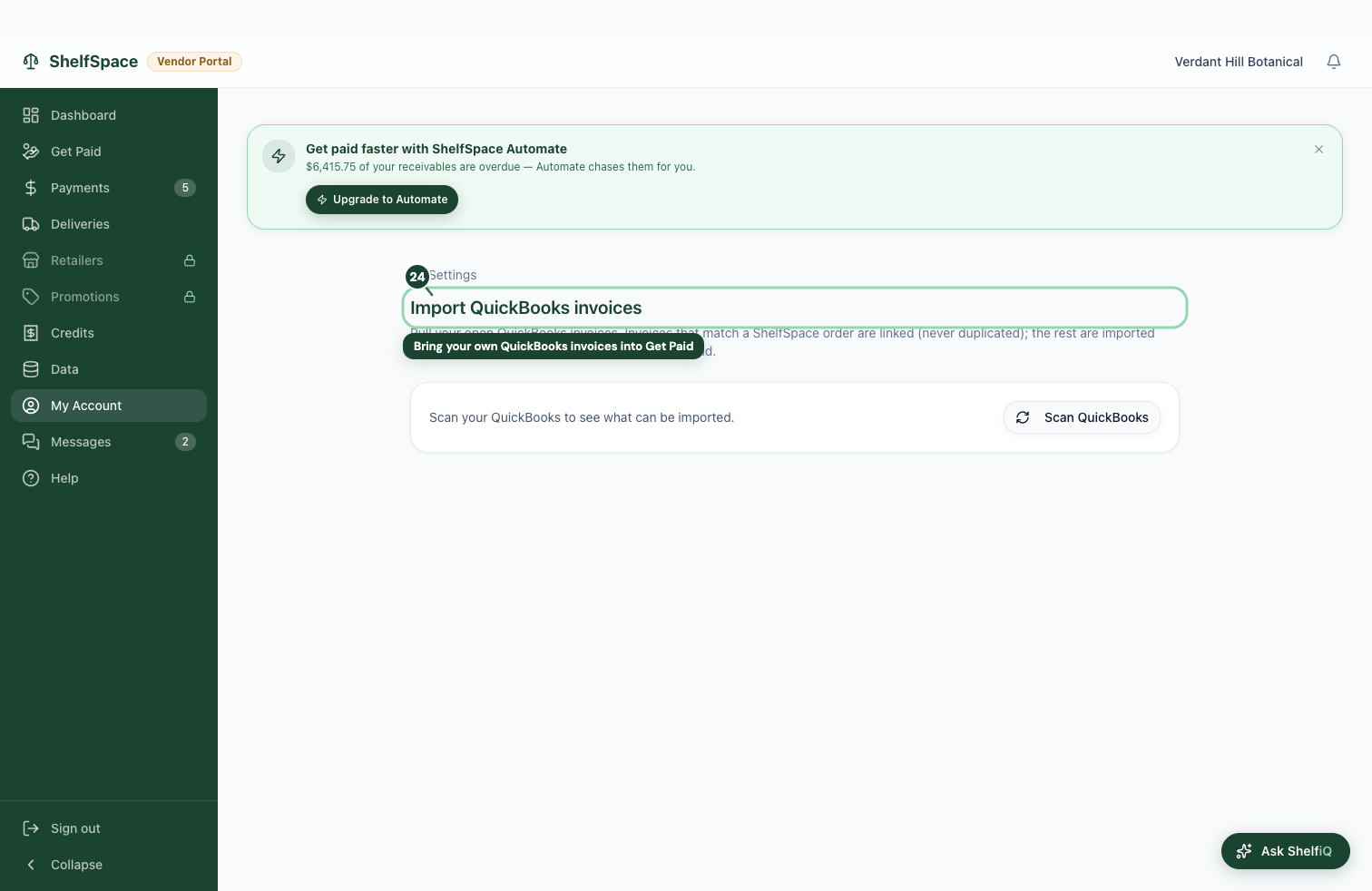
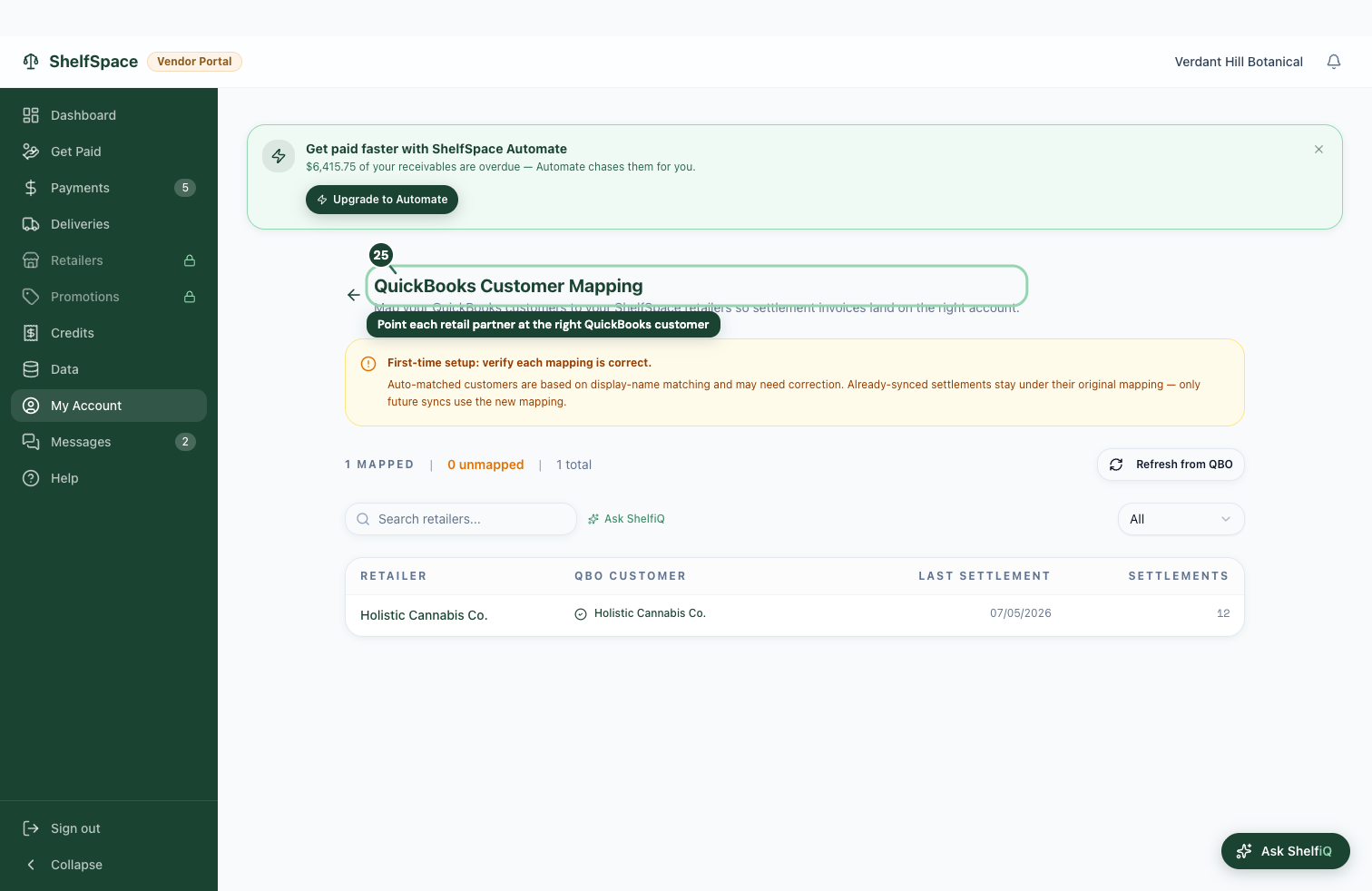
If you keep your books in QuickBooks, ShelfSpace can post your settlements straight into it. Once you've connected QuickBooks in My Account, these screens control the details -- which of your books each store and product maps to, and pulling in invoices you billed outside ShelfSpace.
Pull in invoices you billed outside ShelfSpace
Match each store to a QuickBooks customer
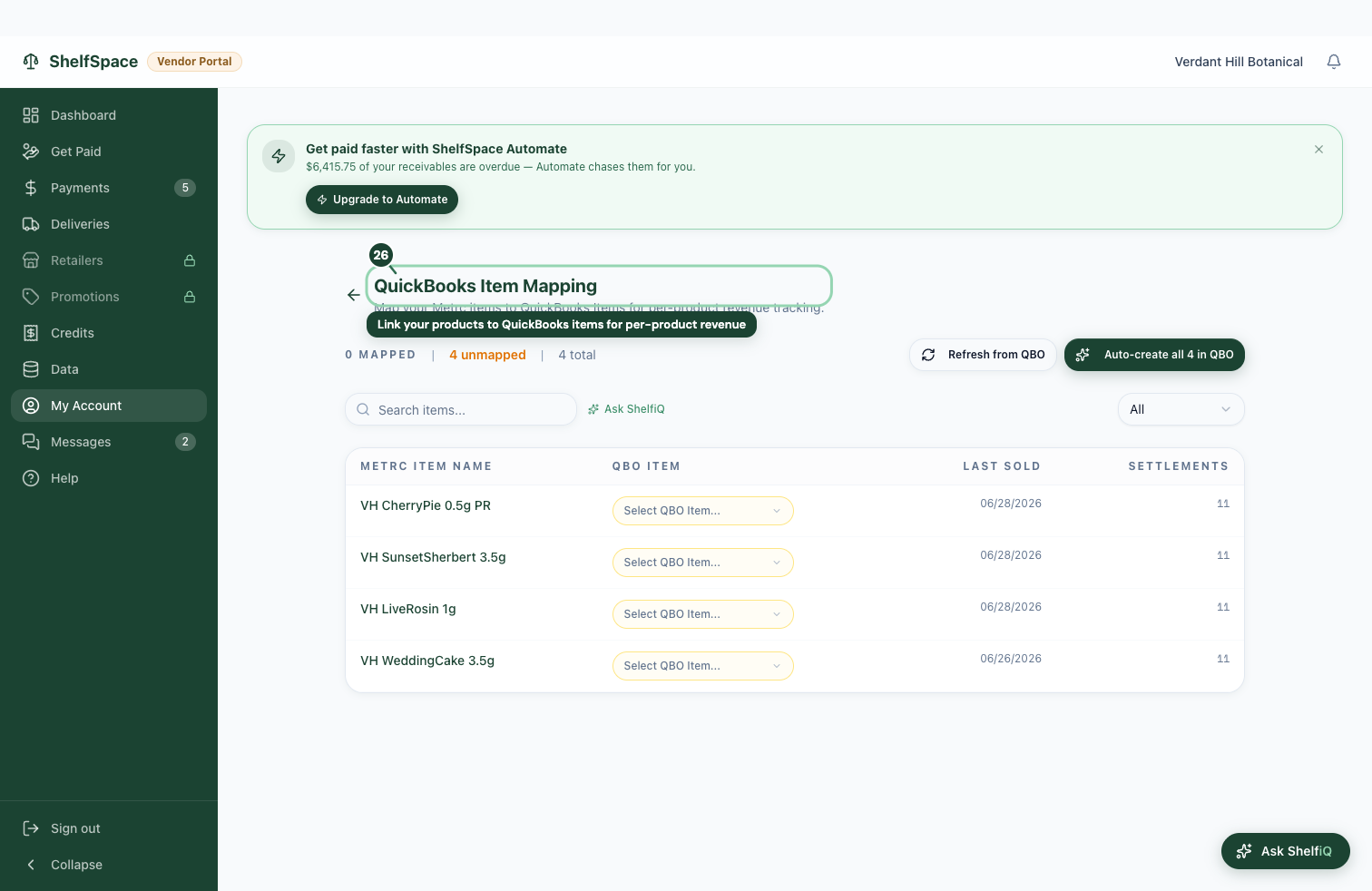
Match your products to QuickBooks items